Category: Blog

  • Per User vs Concurrent Licensing: Which Video Conferencing Pricing Model Saves More?  

    Per User vs Concurrent Licensing: Which Video Conferencing Pricing Model Saves More?  

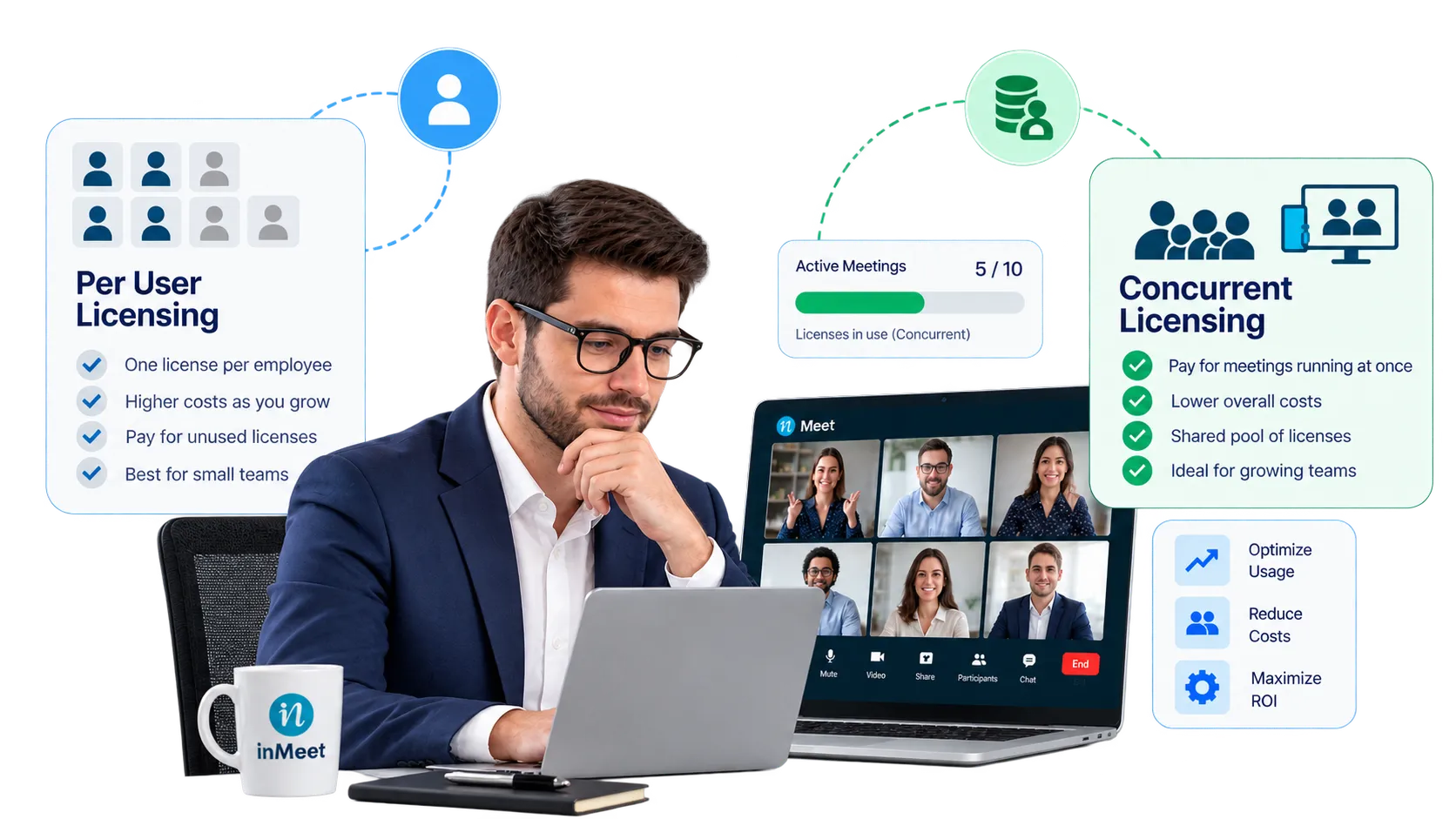
    Concurrent Licensing usually saves more money than Per User pricing, because you only pay for the number of meetings running at the same time not for every employee on payroll. Savings can reach up to 70% for teams with staggered schedules.

    Table of Contents

    If you’re shopping for a video conferencing platform, you’ve likely seen two very different pricing models on the table: pay per employee, or pay for a shared pool of licenses. They sound similar. They are not. Picking the wrong one can mean paying hundreds or thousands of dollars more per year for the exact same amount of meeting time.

    The Two Models, in Plain Words

    Per User Pricing means every employee who might ever host a meeting gets their own license. If you have 30 employees and want all of them able to start meetings, you buy 30 licenses. It doesn’t matter if half of them only host once a month you still pay for all 30, every month, all year, whether they log in or not.

    Concurrent Licensing works on a completely different idea. Instead of buying a license per employee, you buy licenses for the highest number of meetings your company runs at the same time. Any employee can grab a license from that shared pool to start a meeting. Once the call ends, the license goes back into the pool, ready for the next person to use.

    Same team, same amount of meeting activity two very different bills.

    An Easy Way to Picture It

    Think about parking spots at an office building.

    Per User pricing is like giving every employee their own reserved parking spot, whether they drive to work every day or once a month. You pay for every spot, empty or full, all year long.

    Concurrent Licensing is like a shared lot with a fixed number of spots. Anyone can pull in when they arrive. When they leave, that spot opens up for the next person. You only pay for the number of spots your building actually needs at once not one per employee on staff.

    Most companies don’t have every single employee hosting a meeting at the exact same minute. Sales might run calls in the morning. Support runs calls in the afternoon. Leadership meets once a week. A shared pool almost always ends up cheaper, simply because most licenses sit idle most of the day.

    Need help implementing this strategy in your workplace? Reach out to our experts.

    Why This Matters More Right Now

    Video conferencing spend isn’t shrinking it’s shifting. Industry research shows the broader cloud communications market grew to roughly $23 billion in 2025, as more companies move meetings, calling, and messaging off legacy on-site systems and onto cloud platforms, according to Nextiva’s UCaaS market report. As more budget flows into these tools, the pricing model you pick has a bigger impact on your bottom line every year.

    At the same time, buyers are pushing back on confusing pricing. Gartner’s own analysis of the market points to pricing complexity as a real pain point, noting that clearer licensing and contract management are now a deciding factor for many IT teams, as covered in UC Today’s Gartner Magic Quadrant breakdown. In other words, you’re not alone if per-user pricing has felt hard to justify and that’s exactly why shared, usage-based models are gaining traction.

    Side-by-Side Comparison

    Per User PricingConcurrent Licensing
    You pay forOne license per employeeOne license per meeting happening at once
    Best forVery small teams where everyone hosts dailyTeams with staggered meeting schedules
    Cost as you hire more peopleRises with every new hireStays flat unless meeting volume rises
    Wasted spendCommon paying for hosts who barely meetRare licenses get reused all day
    Admin setupSimple assign one license per personSlightly more setup needs a usage check upfront
    Typical savingsBaseline costUp to 70% lower, depending on usage

    For a closer look at how per-user pricing quietly adds up, read why host licenses inflate your bill.

    Real Example: 20-Person Company

    Here’s the math for a typical 20-person business, one of the most common team sizes for small and mid-market companies.

    The setup:

    • 20 employees total
    • On the busiest day, only 6 meetings run at the same time
    • Average license price: $15 per month, per license

    Option 1: Per User Pricing:

    • 20 employees × $15/month = $300/month
    • $3,600 per year
    • You pay for 20 licenses even though only 6 are ever active at once

    Option 2: Concurrent Licensing:

    • 6 shared licenses × $15/month = $90/month
    • $1,080 per year
    • All 20 employees can still host meetings whenever they need to they just draw from the shared pool of 6

    The savings: roughly $2,520 a year, or about 70% less, just by paying for actual usage instead of headcount. No one loses the ability to host a meeting. The company just stops paying for licenses that sit unused most of the day.

    This gap grows as a company grows. A 50-person team with 10 concurrent meetings saves even more in real dollars, because per-user cost climbs with every hire while concurrent cost only climbs if meeting demand climbs with it.

    Want to see this in action? Book a personalized demo.

    Signs Your Team Is Overpaying
    Signs your team

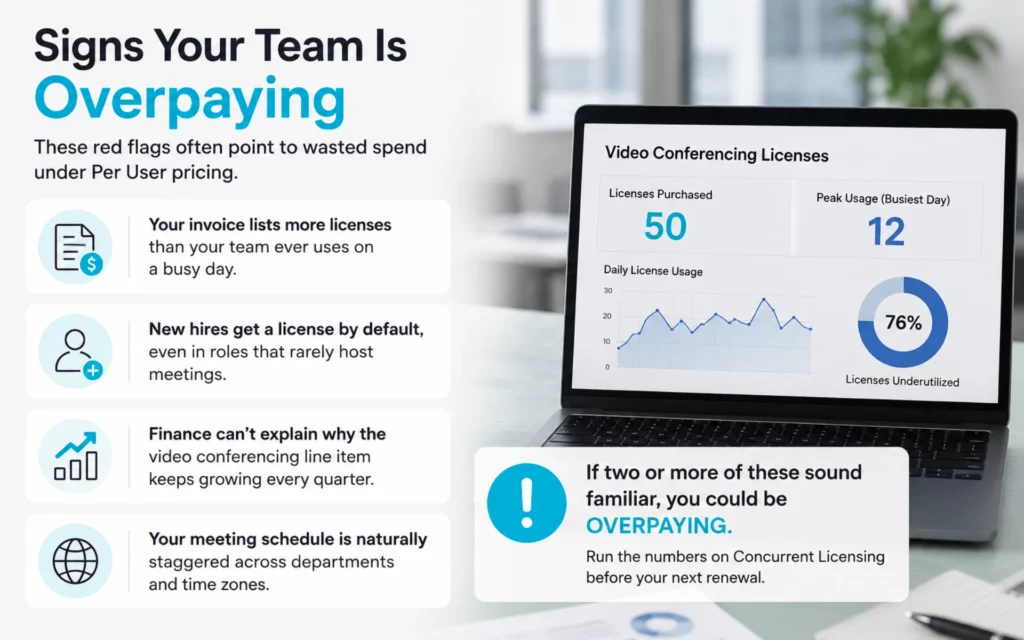
    A few common patterns point to wasted spend under Per User pricing:

    • Your invoice lists more licenses than your team ever uses on a busy day.
    • New hires get a license by default, even in roles that rarely host meetings.
    • Finance can’t explain why the video conferencing line item keeps growing every quarter
    • Your meeting schedule is naturally staggered across departments and time zones.

    If two or more of these sound familiar, it’s worth running the numbers on Concurrent Licensing before your next renewal.

    When Per User Pricing Still Makes Sense

    Concurrent Licensing isn’t automatically the right call for every business. Per User pricing can still be the simpler, cheaper option when:

    • Your team is very small (under 10 people) and everyone hosts calls daily
    • Most of your team is on calls at the exact same time, every day
    • You need to track cost per individual for billing or compliance reasons
    • Your vendor doesn’t offer a fairly priced concurrent option

    The only way to know for sure is to check your own numbers before signing a contract.

    3 Steps to Find Your Own Savings

    1. Check your busiest day. Pull your calendar or meeting logs and find the highest number of meetings that ever run at the exact same time.
    2. Compare that number to your headcount. If it’s much lower than your total team size, a shared license pool will likely save you money.
    3. Do the math both ways. Multiply your headcount by the per-user price. Then multiply your peak concurrent number by the concurrent price. Whichever total is lower is your better deal.

    If security is also on your checklist while comparing vendors, this guide covers what to check before choosing a platform.

    Skip the manual work and generate leads automatically. Try our tool for free.

    Other Costs to Watch For

    The licensing model is the biggest factor in your bill, but not the only one. Cloud recording storage, webinar attendee limits, and support plans can all add to your total cost after you’ve picked a pricing model. For the full picture, see how to save big on your video conferencing bills.

    Frequently Asked Questions

    FAQ
    What is concurrent licensing in video conferencing?

    Concurrent licensing means your company pays for a shared pool of licenses sized to your peak number of simultaneous meetings, not your total employee count. Any employee can use an available license to host, and it returns to the pool once their meeting ends.

    Is per-user pricing the same as per-host pricing?

    Yes. Vendors sometimes use “per host” and “per user” as different labels for the exact same billing model: one license, tied to one named person, paid every month regardless of use.

    Which is cheaper: per user or concurrent licensing, for 20 people?

    For most 20-person teams, concurrent licensing is cheaper. If only a handful of employees ever host meetings at the same time — a common pattern — you can save around 70% a year compared to buying a license for every employee.

    How do I know which pricing model is right for my company?

    Compare your peak concurrent meeting count to your total headcount. A big gap between the two means concurrent licensing will likely save money. If nearly everyone hosts meetings at the exact same time, per-user pricing may cost about the same or less.

    What else affects video conferencing pricing besides the license model?

    Add-ons like recording storage, webinar capacity, integrations, and support tiers all affect the total bill. Always compare full vendor quotes, not just the base license rate, before you decide.

  • Enterprise Webinar Security: How to Protect Your Business Communications

    Enterprise Webinar Security: How to Protect Your Business Communications

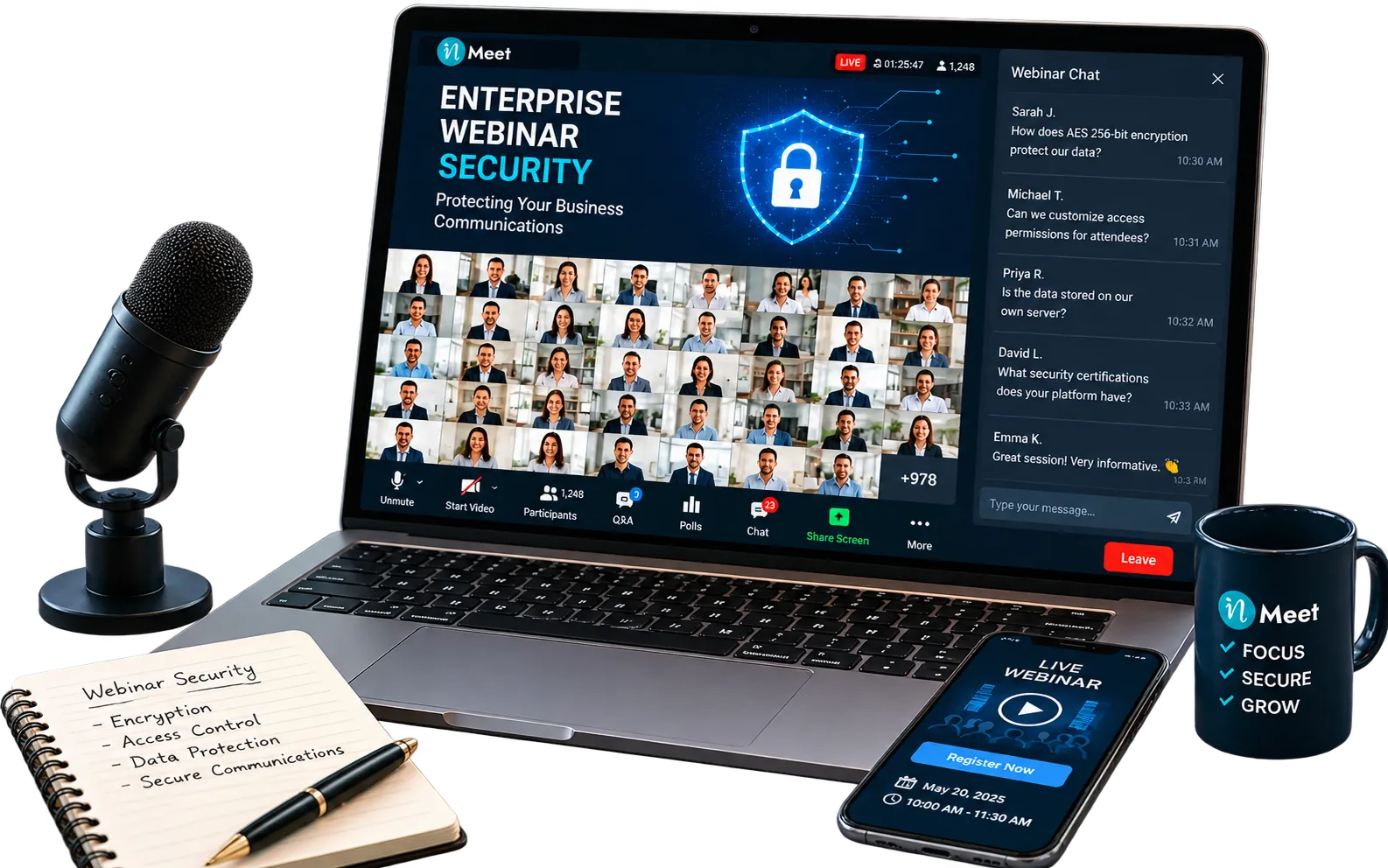
    AES 256-bit encryption scrambles every byte of your webinar data using a key so large it would take longer than the age of the universe to crack by brute force making it the gold standard for protecting confidential business communications on any webinar platform today

    Table of Contents

    Why Webinar Security Is No Longer Optional

    Think about what happens in a typical business webinar.

    Your CFO walks the board through next year’s financials. Your legal team discusses a pending contract. Your HR director runs a benefits briefing with 400 employees across three time zones.

    Every word. Every slide. Every chat message. All of it travels across the internet in real time.

    Without enterprise-grade encryption, that data is exposed. Interceptable. Usable by anyone who gets between your signal and your attendees.

    According to IBM’s Cost of a Data Breach Report 2024, the global average cost of a data breach hit a record $4.88 million — a 10% jump from the previous year and the largest single-year spike since the pandemic. A single leaked strategy call or intercepted product launch webinar can trigger legal liability, competitive damage, and serious reputational harm.

    This is why the type of security your online webinar platform uses is not a checkbox. It is a business decision.

    Want to see enterprise-grade webinar security in action? Book a personalized demo with inMeet to walk through exactly how your data is protected end to end.

    What AES 256-Bit Encryption Actually Is

    AES stands for Advanced Encryption Standard. It is the encryption method used by the U.S. government to protect classified information and by banks to secure online transactions.

    The 256-bit part refers to the length of the encryption key — the secret code used to lock and unlock your data.

    Here is a simple way to think about it:

    • A 1-bit key has 2 possible combinations.
    • A 128-bit key has over 340 undecillion combinations.
    • A 256-bit key has 2²⁵⁶ combinations — roughly 1.1 × 10⁷⁷ possibilities.

    Even if every computer on Earth worked together for billions of years, they could not crack a properly implemented AES 256 key.

    NIST (the National Institute of Standards and Technology) formally standardized AES under FIPS 197, first published in 2001 and updated in 2023. Since then, no one has broken AES 256 through a direct attack. It remains the encryption standard recommended by the NSA for top-secret information.

    When your webinar platform advertises AES 256-bit encryption, it means your audio, video, screen shares, and chat are locked with military-grade security before they ever leave your device.

    Multi-Layer Security: Encryption Is Just the Start

    AES 256 is powerful, but it is only one layer of a truly secure webinar environment. Enterprise-grade platforms combine several security mechanisms together.

    Here is what a full security stack looks like on a platform like inMeet Webinar:

    Security FeatureWhy It MattersAES 256-bit Encryption
    AES 256-bit EncryptionScrambles all data in transitMakes intercepted data unreadable
    Password ProtectionRestricts meeting accessBlocks unauthorized attendees
    Registration ApprovalsLets hosts approve each attendeePrevents data leaks to unknown parties
    Dedicated SubdomainsEach company gets its own environmentIsolates your data from other organizations
    Firewall Traversal (ICE/WebSockets)Maintains connectivity across NAT and proxiesKeeps sessions stable without opening security gaps
    Host Engagement ControlsHosts can mute/disable chat, polls, emojisPrevents misuse during live sessions

    A webinar platform that only offers encryption but lacks registration controls or subdomain isolation leaves significant security gaps — especially for regulated industries like healthcare, finance, and government.

    If you want to understand the full feature set that makes a webinar platform both secure and effortless to run, the inMeet Webinar features breaks down every capability in plain language.

    Is your current webinar setup truly secure? Reach out to our experts for a free walkthrough of how inMeet handles security from the ground up.

    Why Industry Sectors Have Different Security Thresholds

    Not every business faces the same level of risk. But almost every sector has compliance requirements that touch webinar communications directly.

    Healthcare providers running patient briefings or training sessions must consider HIPAA compliance. Any video platform used for protected health information needs end-to-end encryption as a baseline.

    Financial services companies are governed by frameworks like SOC 2, PCI-DSS, and SEC regulations. A single earnings call conducted over an unsecured platform can create regulatory exposure. The IBM 2024 report found healthcare and financial services organizations face the highest breach costs of any industry — healthcare averaging $9.77 million per incident.

    Government and public sector organizations are often required to use platforms that meet FedRAMP or MEITY-certified standards. India’s Ministry of Electronics and Information Technology (MEITY) recognized InstaVC under its Innovation Challenge for Indian Video Conferencing Solutions in 2020.

    Educational institutions handling student data must account for FERPA requirements in the U.S. and equivalent regulations in other countries.

    The table below shows how security needs shift by sector:

    SectorKey Compliance FrameworkCritical Security Feature
    HealthcareHIPAAEnd-to-end encryption, access controls
    Financial ServicesSOC 2, PCI-DSSAudit logs, encrypted recordings
    GovernmentFedRAMP / MEITYDedicated hosting, data sovereignty
    EducationFERPARegistration controls, host permissions
    CorporateGDPR, ISO 27001Password protection, attendee approvals

    The Hidden Risks Most Businesses Miss

    Most companies focus on preventing external hackers. But some of the biggest webinar security risks come from inside the meeting itself.

    1. Open registration webinars without approval controls If anyone can register and join without host approval, competitors, journalists, or bad actors can attend your internal briefings. Platforms with Registration Approval features let you manually vet every attendee before granting access.
    2. Recording security gaps Cloud recordings stored without encryption or access controls are a significant liability. Enterprise platforms should support both local and cloud recording in encrypted formats (like WebM or MP4 with access permissions), so recordings do not become a secondary breach vector.
    3. Weak session isolation If your platform runs all customers on shared infrastructure without dedicated subdomains or tenant separation, data from your organization can theoretically be adjacent to data from others. A dedicated subdomain for each company creates a personalized, isolated environment.
    4. No firewall traversal Corporate networks with strict firewalls can force employees to use personal devices or unsecured connections to join meetings. Platforms with ICE protocol and WebSocket support maintain connectivity without compromising security policies.

    For a deeper look at how modern webinar tools eliminate these friction points from the host side, read how inMeet makes hosting webinars effortless — it covers the full lifecycle from scheduling to post-event recording access.

    Skip the manual security reviews. Book a personalized demo to see how inMeet handles all four of these risks out of the box.

    How to Evaluate Any Webinar Platform’s Security Claims

    Security claims are easy to make. Here is a practical checklist to verify them before committing to any online webinar platform:

    • Does the platform explicitly state AES 256-bit encryption (not just “encrypted”)?
    • Is there end-to-end encryption for both video and audio streams?
    • Does the platform offer dedicated infrastructure or shared multi-tenant hosting?
    • Are recordings encrypted at rest, not just in transit?
    • Can hosts control who joins (registration approvals, password protection)?
    • Does the platform support compliance frameworks relevant to your industry?
    • Is there a dedicated subdomain or isolated environment for your organization?
    • Does the vendor have third-party security certifications or audits?

    If a vendor cannot answer all of these clearly and specifically, that is a signal worth taking seriously.

    AES 256 vs. AES 128: Does the Difference Matter?

    You may see some platforms advertising AES 128-bit encryption and wonder if it is meaningfully less secure.

    FeatureAES 128-bitAES 256-bit
    Key length128 bits256 bits
    Possible key combinations3.4 × 10³⁸1.1 × 10⁷⁷
    Current brute-force vulnerabilityNone knownNone known
    Recommended for classified dataNoYes (NSA Suite B)
    Processing overheadSlightly lowerSlightly higher
    Best forGeneral consumer appsEnterprise / government use

    According to NIST’s FIPS 197 specification, AES-256 uses 14 encryption rounds compared to AES-128’s 10 rounds — giving it a significantly larger security margin against future computational threats, including theoretical quantum computing attacks.

    In practical terms, both are currently unbreakable by any known method. However, for enterprise organizations, regulated industries, or any company where the cost of a breach is high, AES 256-bit is the right choice. It signals that the platform was built with serious security in mind from the ground up, not added as an afterthought.

    What This Means in Practice: A Real-World Example

    Consider what happened when NDA, an AI-driven startup, needed to scale their virtual conference platform to support up to 200,000 participants in real time.

    Their existing platform crashed under load. Socket handling in their backend was unstable. They had no infrastructure capable of isolating sessions or maintaining performance at that scale.

    Working with inMeet’s team, they implemented:

    • A large-scale HUB socket server enabling real-time communication for over 50,000 concurrent users with a path to scale toward 200,000
    • Client-side code fixes to eliminate crashes and stabilize communication protocols
    • A full migration from Angular to React.js completed within two months
    • A scalable architecture designed to grow to 200,000 attendees on the video conference platform

    This is the kind of scale inMeet Webinar is built for — backed by patented scalability technology that handles both massive audience size and airtight security simultaneously.

    Security and scalability are not separate problems. They are the same problem. A platform that collapses under load is also a platform that cannot maintain encrypted sessions reliably under pressure.

    Ready to run webinars at this scale — securely? Book a personalized demo and see exactly how inMeet handles 200,000 attendees without compromising on encryption or reliability.

    Frequently Asked Questions

    FAQ
    What is AES 256-bit encryption in webinars?

    AES 256-bit encryption is a method of securing data that uses a 256-bit key to encode all information transmitted during a webinar — including audio, video, screen sharing, and chat. It is the same standard used by the U.S. government for classified information and is currently unbreakable by any known attack method. NIST formally standardized it under FIPS 197.

    Why does webinar encryption matter for regulated industries?

    Industries like healthcare, finance, and government operate under compliance frameworks (HIPAA, PCI-DSS, MEITY) that require specific data protection standards. According to IBM’s 2024 Cost of a Data Breach Report, healthcare organizations face average breach costs of $9.77 million per incident. A webinar platform without enterprise-grade encryption can expose your organization to regulatory fines, legal liability, and reputational damage.

    What is the difference between encryption in transit and encryption at rest?

    Encryption in transit protects your data while it travels between devices during a live session. Encryption at rest protects stored recordings and session data when it is saved to a server. Enterprise webinar security requires both.

    How many attendees can inMeet Webinar support?

    inMeet Webinar supports up to 200,000 attendees in a single session, backed by patented scalability technology and a multi-layer security architecture that maintains encrypted connections at every scale.

  • Secure Video Meetings for Healthcare: What Clinics Need, What Most Platforms Miss  

    Secure Video Meetings for Healthcare: What Clinics Need, What Most Platforms Miss  

    Virtual meeting software for healthcare is a secure, compliant video communication platform that lets providers conduct telehealth visits, care team huddles, and administrative meetings online — without compromising patient privacy or clinical workflow. The right platform reduces no-shows, cuts overhead costs, and expands patient access, especially in rural or underserved areas.

    But not all platforms are built for clinical environments. This guide breaks down what makes a video meeting platform truly healthcare-grade, how inMeet by InstaVC delivers on those requirements, and what to evaluate before you commit.

    Table of Contents

    1. Why Healthcare Needs Its Own Meeting Software
    2. The State of Virtual Care Today
    3. What Makes Virtual Meeting Software Healthcare-Grade?
    4. Top Use Cases Across the Care Cycle
    5. inMeet vs. Generic Video Tools
    6. Why inMeet Stands Apart
    7. The Hidden Cost of Getting This Wrong
    8. Choosing the Right Fit for Your Organization
    9. Frequently Asked Questions

    Why Healthcare Needs Its Own Meeting Software

    Not every video call tool is built the same.

    Zoom works fine for quarterly business reviews. But when a physician discusses a patient’s diagnosis, lab results, or treatment plan over a non-compliant platform, it can trigger federal HIPAA violations — with fines starting at $100 per incident and climbing to $1.9 million per year for repeated violations (HHS Office for Civil Rights). The AMA is explicit: physicians must comply with HIPAA and state privacy laws including when providing telehealth.

    Healthcare organizations have needs that generic platforms were never designed to meet:

    • HIPAA-compliant infrastructure with proper security documentation
    • End-to-end encryption for all audio, video, and chat
    • Audit logs tracking who accessed what and when
    • Private waiting rooms protecting patient confidentiality between sessions
    • EHR integration so providers are not tab-switching mid-consultation

    That is why purpose-built platforms like inMeet by InstaVC exist — and why healthcare-specific adoption has accelerated so sharply since virtual care became a clinical standard.

    💡 Not sure if your current platform meets clinical requirements? Talk to an inMeet expert and get a free platform assessment.

    The State of Virtual Care Today

    Telehealth is no longer a niche feature. It is a standard of care — and the data reflects that shift.

    • 37% of U.S. adults used telehealth in the past 12 months (CDC National Health Interview Survey)
    • Utilization has stabilized at levels 38x higher than pre-pandemic baselines (McKinsey & Company)
    • Rural patients save an average of 51 miles per telehealth visit compared to in-person travel (Health Affairs)
    • Mental health accounts for more than 60% of virtual visits in many health systems (American Psychiatric Association)

    Patients have adapted faster than most platforms have. The challenge now is not whether to use virtual meetings — it is choosing the platform that delivers them safely, effectively, and without compliance exposure.

    📖 For the full clinical and operational case for a dedicated telehealth platform, read: 7 Strategic Advantages of Having a Dedicated Telehealth Video Platform.

    What Makes Virtual Meeting Software Healthcare-Grade?

    Most buying guides list features without explaining why they matter clinically. Here is what actually counts.

    HIPAA-Compliant Infrastructure — HIPAA compliance depends on configuration and contracts, not brand names. A vendor must operate within a compliant framework and provide documentation before you go live. Without this, video sessions carry legal exposure regardless of how secure the technology appears.

    AES 256-Bit End-to-End Encryption — inMeet applies AES 256-bit encryption with multi-layer security architecture across all sessions, ensuring no third party — including the platform vendor — can intercept a patient conversation.

    Private Virtual Waiting Rooms — Patients must never share a digital lobby. inMeet’s built-in waiting room lets providers admit each patient individually, preserving the confidentiality standard of a physical clinic.

    EHR and EMR Integration — Native integrations with systems like Epic, Cerner, and Athenahealth let providers launch a visit directly from within the patient chart — no link-copying, no manual handoff.

    Low-Bandwidth Performance — Not every patient has reliable broadband. inMeet is engineered with advanced bandwidth optimization, delivering stable video even at low connection speeds — critical for rural and elderly populations.

    Compliant Recording and Audit Trails — inMeet supports local and cloud recording in WebM and MP4 formats, with comprehensive access logs retrievable on demand for compliance audits and continuity of care. Understanding HIPAA Compliance in Video Conferencing and Telehealth Platforms — Paubox

    Top Use Cases Across the Care Cycle

    Virtual meeting software is not just for patient appointments. Here is where clinical teams use it every day.

    Clinical: Telehealth follow-ups, medication reviews, chronic disease management, behavioral and mental health sessions, remote patient monitoring consultations, and specialist second opinions — all without requiring patient travel.

    Administrative: Interdisciplinary care team rounds across departments and campuses, provider-to-provider e-consults for real-time specialist input, staff training and onboarding for distributed health systems, and board or compliance meetings with full audit trails.

    Large-scale: For health systems running CME events or public health communications, inMeet’s built-in webinar module supports up to 200,000 attendees with YouTube Live Streaming, branded registration, speaker management, and real-time polls — no separate platform required.

    📖 For teams managing remote and hybrid provider setups: How to Choose the Best Online Meeting Platform for Remote and Hybrid Teams.

    inMeet vs. Generic Video Tools

    FeatureGeneric Tools (Zoom, Teams)inMeet
    HIPAA ComplianceRequires configuration, not built-inEnterprise-grade, built-in
    End-to-End EncryptionVaries by planAES 256-bit, standard on all sessions
    Video QualityHD4K-ready for clinical-grade clarity
    Licensing ModelPer-host, expensive at scaleConcurrent — saves up to 70%
    Deployment OptionsCloud onlyCloud or on-premise

    A 20-provider clinic paying per-host for every provider account — whether those providers are in a session or not — pays for capacity it rarely uses. inMeet’s Concurrent Licensing charges only for simultaneous active sessions, which is how clinical operations actually work.

    General tools can technically be configured toward HIPAA eligibility. inMeet is built compliant, clinical, and cost-efficient from day one. Is a Virtual Healthcare Platform Worth It for Hospitals? — InstaVC

    Why inMeet Stands Apart

    Concurrent Licensing — Save Up to 70% inMeet’s Concurrent Licensing Model charges only for simultaneous active sessions — not per provider seat. For healthcare organizations where not every provider runs virtual sessions at the same time, this delivers up to 70% savings on annual recurring costs compared to traditional per-host models.

    4K-Ready Video for Clinical Accuracy Observing a wound, a skin condition, a patient’s affect, or range of motion requires sharp, stable video. inMeet delivers 4K-ready video with HD audio clarity — giving providers the visual fidelity needed for informed clinical judgments during virtual visits.

    AI-Generated Meeting Summaries After each session, inMeet automatically generates a structured summary capturing key discussion points, action items, and original and auto-corrected transcriptions. For every 30 minutes a provider spends with a patient, they spend 36 minutes charting (NCBI). AI summaries give providers a documentation starting point immediately after every visit — reducing after-hours charting and the burnout that comes with it.

    Multi-Camera and Multi-Screen Support inMeet supports live feeds from up to 6 cameras simultaneously and allows up to 4 participants to share screens at the same time — valuable for procedure-based consultations, clinical training, and collaborative care reviews.

    No-Download, Browser-Based Patient Join The most common reason patients abandon telehealth visits is login friction — forced app downloads, account creation, and confusing waiting room flows. inMeet is fully browser-based with no plugin or app required. Patients join via a single link on any device — Windows, iOS, Android, Linux, or macOS — in seconds.

    White Labeling and On-Premise Deployment Healthcare organizations can deploy inMeet under their own brand — logo, colors, custom subdomain. And for health systems with strict data residency requirements, inMeet supports both cloud and on-premise deployment, giving full control over where patient session data lives.

    � Skip the evaluation back-and-forth. Try inMeet free and see it in your clinical workflow today

    The Hidden Cost of Getting This Wrong

    Healthcare organizations often treat the platform decision as a technology line item. The actual cost calculus is clinical.

    No-show rates average 18–23% across U.S. healthcare settings (Advisory Board). When the platform is difficult to join, that number climbs. Patients who cannot connect on the first attempt often skip the appointment entirely.

    HIPAA breach settlements tied to technology misuse averaged $1.2 million (HHS). A non-compliant platform is not saving money — it is deferring a larger exposure.

    Provider time lost to tech troubleshooting is clinical capacity consumed by an IT problem. When a clinician spends the first ten minutes of a virtual visit walking a patient through login steps, care has not started — but the clock has.

    Choosing the right virtual meeting software is a clinical quality decision. With inMeet’s AI summaries, concurrent licensing, and zero-friction patient join, ROI shows up in reduced no-shows, lower compliance risk, and recovered provider time — from the first month.

    For behavioral health practices especially, where therapeutic continuity matters deeply, a platform that drops mid-session or pushes patients through a confusing join process does not just create an IT ticket — it damages the clinical relationship. The platform is part of the care experience, whether clinicians think of it that way or not.

    Choosing the Right Fit for Your Organization

    Not every clinic has the same priorities. A solo behavioral health therapist needs something different from a 500-bed hospital system.

    Small and solo practices benefit most from inMeet’s simple browser-based join, instant meeting capability, calendar integration, and concurrent pricing that does not charge for idle provider accounts. There is no IT department required to set it up or maintain it.

    Community health centers and FQHCs serving underserved populations need bandwidth optimization for low-connectivity patients and multi-language support — both standard in inMeet — alongside a licensing model that does not scale costs faster than patient volume.

    Hospital systems and multi-campus networks need EHR integration at scale, single sign-on for providers, centralized admin dashboards, and Multi Display Telepresence for coordinating care across buildings and campuses. inMeet’s auto-scalable backend MCU handles demand spikes without manual infrastructure adjustments.

    Behavioral health and mental health practices need a calm, discreet patient-facing interface, strong waiting room privacy, screen sharing for CBT worksheets and clinical tools, and AI-generated summaries that capture session notes without adding charting time at the end of a long clinical day.

    Conclusion

    Virtual care is no longer a backup option — it is how modern clinical teams operate. But the platform underneath that care either protects your patients, your providers, and your compliance standing, or it quietly works against all three.

    Generic tools were built for boardrooms. inMeet was built for clinics — with the encryption, waiting room privacy, EHR integration, AI documentation, and licensing model that healthcare organizations actually need.

    The right platform does not just host a video call. It reduces no-shows, cuts documentation burden, keeps your team compliant, and gives patients a join experience so simple they never have to call the front desk for help.

    That is the difference between a video tool and a clinical communication platform.

    Frequently Asked Questions

    FAQ
    What is inMeet and how is it used in clinical settings?

    inMeet is a cloud-based SaaS video meeting platform by InstaVC, purpose-built for healthcare. Clinics use it for telehealth visits, care team coordination, provider-to-provider e-consults, staff training, and large-scale CME webinars — all on one secure, browser-based platform with AES 256-bit encryption and AI-generated session summaries.

    How do patients join an inMeet telehealth session?

    Patients receive a link and join through any standard web browser — no app download, no account creation, no plugin. Works on any device and operating system including smartphones, tablets, and desktops.

    What is Concurrent Licensing and why does it matter?

    Most platforms charge per host whether that provider is in a meeting or not. inMeet charges only for simultaneous active sessions — reducing annual licensing costs by up to 70% for clinics where providers are not all online at the same time.

    Does inMeet support on-premise deployment?

    Yes. inMeet supports both cloud and on-premise deployment, giving health systems with strict data residency requirements full flexibility over where patient session data is stored and processed.

  • The Ultimate Guide to Video Meeting Software for Educators

    The Ultimate Guide to Video Meeting Software for Educators

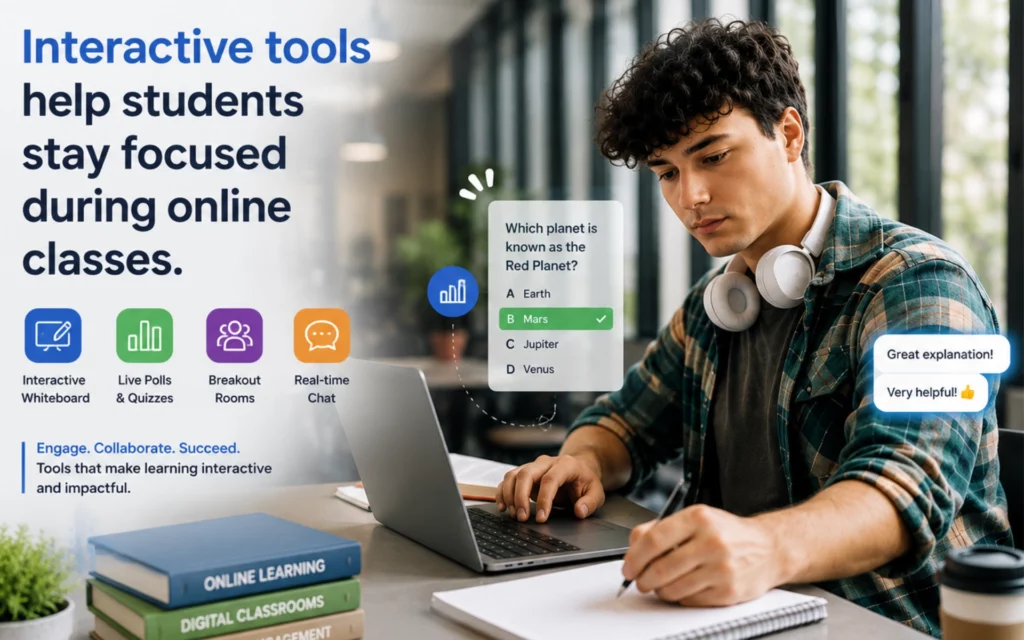
    video meeting software for educators is a digital platform built to host online classes, manage student engagement, and share learning materials. It goes beyond basic video calls by offering teaching tools like whiteboards, breakout rooms, and attendance tracking to keep students focused.

    Table of Contents

    The Problem with Standard Meeting Tools in the Classroom

    When the world shifted to online learning a few years ago, schools scrambled to find ways to connect. Most teachers had to use standard business tools to run their classes. Very quickly, everyone realized a hard truth: a classroom is not a boardroom.

    Most business video platforms assume everyone in the room wants to be there. They assume adults know how to take turns talking. They assume no one will try to take over the screen to draw funny pictures. A classroom is entirely different. Teachers need full control over the digital room. They need clear ways to keep easily distracted students engaged.

    If you try to run a class of 30 students on a standard business app, you run into big problems. Students talk over each other. Uninvited guests drop into the meeting. Sharing lesson materials becomes a messy process.

    According to data from the National Center for Education Statistics, over 75% of colleges and universities now offer permanent online distance learning options. To manage this massive shift, schools are moving away from generic apps. They are upgrading to specialized platforms. They need systems built specifically for teaching and learning.

    Need help implementing this strategy in your workplace? Reach out to our experts.

    6 Must-Have Features for Virtual Classrooms

    Standard video calls just let people see and hear each other. An education platform needs to do much more. It must act as a full digital classroom. Before you choose a new system, you need to know exactly which features teachers actually need to succeed online

    These are the core tools every teacher needs:

    1. Breakout Rooms for Group Work

    Students learn best when they work together. You cannot do group work in one giant video room with 30 people. Breakout rooms let you split your main class into smaller groups. Students can work on a project together, and the teacher can jump from room to room to check on their progress.

    2. Digital Whiteboards

    Teachers need a place to write notes, solve math problems, and draw diagrams. A built-in digital whiteboard acts just like a real chalkboard. The best platforms let teachers save the whiteboard notes at the end of the class and send them directly to the students for review.

    3. Automated Attendance Tracking

    Taking attendance in a physical classroom takes two minutes. On a standard video call, it is a nightmare. Students join late, drop off, and log back in. Good video meeting software for educators tracks attendance automatically. It generates a clear report after the class ends. You can see exactly who logged in, what time they joined, and how long they stayed.

    4. Strict Host Controls

    Teachers must control the classroom environment. If a student forgets to mute their microphone, the teacher needs the power to mute it for them. If a student tries to share their screen without permission, the teacher needs to block it. Advanced host controls stop classroom disruptions before they start.

    5. Low-Bandwidth Modes for Fair Access

    Not every student has high-speed internet at home. When video tools require too much data, students with poor internet connections get kicked out of the class. Education software often includes a low-bandwidth mode. This mode lowers the video quality slightly so the connection stays stable. It ensures every student gets fair access to the lesson.

    6. Interactive Quizzes and Polls

    It is hard to know if students understand the lesson when you cannot see their faces clearly. Built-in polls let teachers ask quick questions during the class. You can instantly see if the class understands the topic, or if you need to explain it again.

    Want to see this in action? Book a personalized demo.

    Standard Video Software vs. Education Platforms

    How do general tools actually stack up against platforms built specifically for teaching? If you are deciding between a free business tool and an education platform, you need to understand the exact differences.Before choosing the right platform, review this quick breakdown of how they compare:

    Feature FocusStandard Business VideoEducation-Focused Video
    Main GoalTeam collaborationStudent learning
    Host ControlsBasic (anyone can share)Advanced (teacher controls all)
    EngagementScreen sharingWhiteboards, quizzes, hand-raising
    SecurityStandard encryptionStrict student data compliance
    TrackingNoneAutomated attendance reports

    How to Keep Students Engaged Online

    Finding the right software is only the first step. You also need to know how to use it to keep students awake and interested. Staring at a screen for an hour is tiring. You have to break the class into smaller, active segments.

    First, use the chat feature smartly. Ask students to type their answers in the chat instead of talking over each other. This gives shy students a chance to participate without speaking in front of the whole class.

    Second, change the activity every 15 minutes. Start with a short lecture. Then, ask a poll question. After that, send them into breakout rooms to discuss a topic. Changing the format resets their attention span.

    Third, use the digital hand-raising tool. When students have a question, they can click a button to raise a virtual hand. This alerts the teacher without interrupting the lesson. It creates an organized, polite way to handle questions and answers.

    Skip the manual work and Generate Leads automatically. Try our tool for free.

    Protecting Student Privacy and Data

    Security in education is not just a nice feature. It is a strict legal requirement. Schools face heavy fines if they leak student data.

    Standard business tools often track user behavior and sell that data to advertisers. They also allow anyone with a link to join a meeting. This led to a rise in random strangers joining online classes to cause disruptions.

    Proper video meeting software for educators solves this. It uses waiting rooms. When a student clicks the link, they do not go straight into the class. They go to a waiting area, and the teacher must approve them. This blocks strangers instantly.

    Additionally, education platforms must follow data protection laws. This means they cannot track student data, record classes without clear permission, or share any personal information. When you choose a tool, you must verify it passes these privacy laws to keep your students safe.

    How to Set Up Your First Virtual Classroom

    Setting up your first digital classroom can feel overwhelming. If you follow a simple plan, you can avoid the most common technical issues. Here is exactly how to start:

    Step 1: Check your hardware.

    Do not rely on the cheap microphone built into your laptop. Buy a basic USB headset. Good audio matters more than good video. If students cannot hear you clearly, they will tune out immediately.

    Step 2: Learn your platform.

    Before your first class, start a practice meeting by yourself. Practice sharing your screen. Try turning on the digital whiteboard. Find the “mute all” button. You do not want to search for these buttons while 30 students wait for you.

    Step 3: Set clear digital rules.

    On the first day of class, tell your students exactly what you expect. Tell them if they need their cameras on. Tell them how to use the chat box. Explain how to ask a question. Clear rules prevent chaos later.

    Step 4: Record your sessions.

    Always record your classes and share the link afterward. Students get sick. Internet connections drop. A recorded class ensures no one falls behind when technology fails them.

    The Future of Hybrid Learning

    Online classes are not going away. Even as students return to physical schools, hybrid learning continues to grow. Teachers now use online platforms to host guest speakers from around the world. They use virtual rooms for after-school tutoring.

    The software will keep getting smarter. Soon, platforms will use artificial intelligence to automatically translate a teacher’s words into different languages in real-time. This will help international students follow the lesson easily. The lines between physical and digital classrooms will continue to fade.

    Frequently Asked Questions

    FAQ
    What is video meeting software for educators?

    It is a virtual classroom tool designed specifically for teaching. It includes student management, interactive boards, and strong privacy settings that standard meeting apps completely lack.

    How do I keep students engaged during a virtual class?

    You must use interactive features. Break your main lesson into shorter segments. Send students into breakout rooms for small group tasks. Use built-in polls every 15 minutes to check if they understand the lesson.

    Why is security so important for education software?

    Schools must protect student data by strict privacy laws. Education platforms block uninvited guests from joining classes using waiting rooms. They also stop tech companies from tracking and selling private student information.

    Can students with slow internet join virtual classes?

    Yes, if you choose the right platform. Look for software that offers a low-bandwidth mode. This mode lowers the video feed quality to keep the audio clear, so students with slow internet can still hear the lesson perfectly.

  • What Is a Smart Meeting Room Solution and How It Works

    What Is a Smart Meeting Room Solution and How It Works

    A smart meeting room solution is a single system that connects your booking software, your door access control, and your video platforms. It lets you start meetings instantly without delays or cable clutter.

    Table of Contents

    Introduction

    Picture this scene. It is 10:00 AM on a Tuesday. Your team walks into the main conference room. The wall screen is completely blank. The HDMI cable is missing again. You spend the next ten minutes trying to log into a video app. Meanwhile, a key client waits online, staring at an empty virtual room.

    Traditional meeting rooms simply do not work well for modern hybrid teams. They cause stress. They waste valuable time. They make your company look bad in front of clients. You need tools that just work the second you sit down. This is where smart meeting room solutions step in to fix the mess.

    What Is a Smart Meeting Room Solution

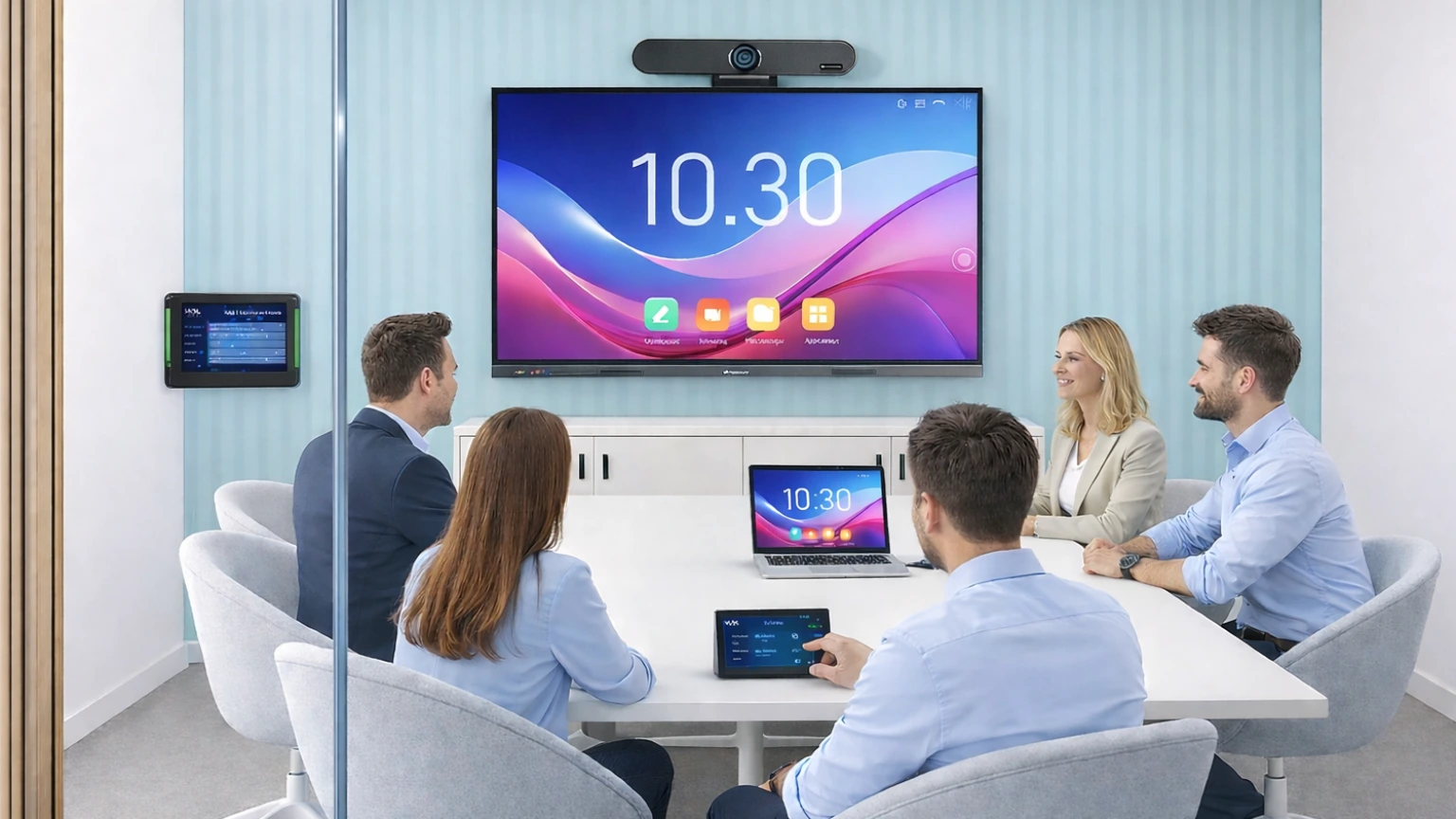
    A smart meeting room connects your booking calendar, your door access, your room controls, and your video calls into one clear experience.

    It removes the daily friction from starting and running your meetings. You do not deal with delays. You do not untangle cables. You do not guess which remote turns on the camera. The system connects everything ahead of time so you can just talk and work. You walk in, press a single button, and your meeting begins. If you want to understand the importance of making this shift, read about why your business needs a dedicated virtual meeting platform.

    Why Traditional Meeting Rooms Fail

    Old rooms rely on standalone pieces of hardware that do not connect with each other. This causes daily problems that frustrate your staff and slow down your work. Let us look at the main roadblocks.

    • Double bookings: Two different teams show up for the exact same room at the exact same time. Both teams think they booked it. They stand in the hallway and argue over the space.
    • Delayed meeting start: People fight with broken cables. They type in long passwords using a cheap keyboard. They spend time fixing tech instead of talking about real work.
    • Too many devices and remotes: You need one remote for the TV. You need another remote for the camera. You need a third remote to change the volume. It is too confusing for most people.
    • Platform compatibility issues: The room hardware only runs Zoom. However, your client uses Microsoft Teams. You cannot connect the call on the main screen.
    • No visibility into room usage: Teams book rooms for weekly meetings but sometimes do not show up. The room sits empty, but the calendar says it is full. Managers have no idea if teams actually use the spaces they book.

    Real Example: A sales team at a growing software company lost fifteen minutes of a major pitch. They could not share their laptop screen to the wall TV. They tried three different cables, but none worked. The team lost a major deal simply because of bad room hardware.

    Key Components of a Smart Meeting Room

    A smart room uses an ecosystem of tools working together. You need four main parts to make the room smart.

    1. Room Booking System

    Room Booking System

    This software links directly to your company calendar, like Google Workspace or Microsoft Outlook. You book a space right from your phone or your laptop.

    If someone cancels a meeting, the system instantly frees up the room on the calendar. Other people can book it right away. This stops the problem where rooms sit empty.

    Outcome: Meetings start on time, and you always find an open room.

    2. Gateway (Access Control)

    Gateway (Access Control)

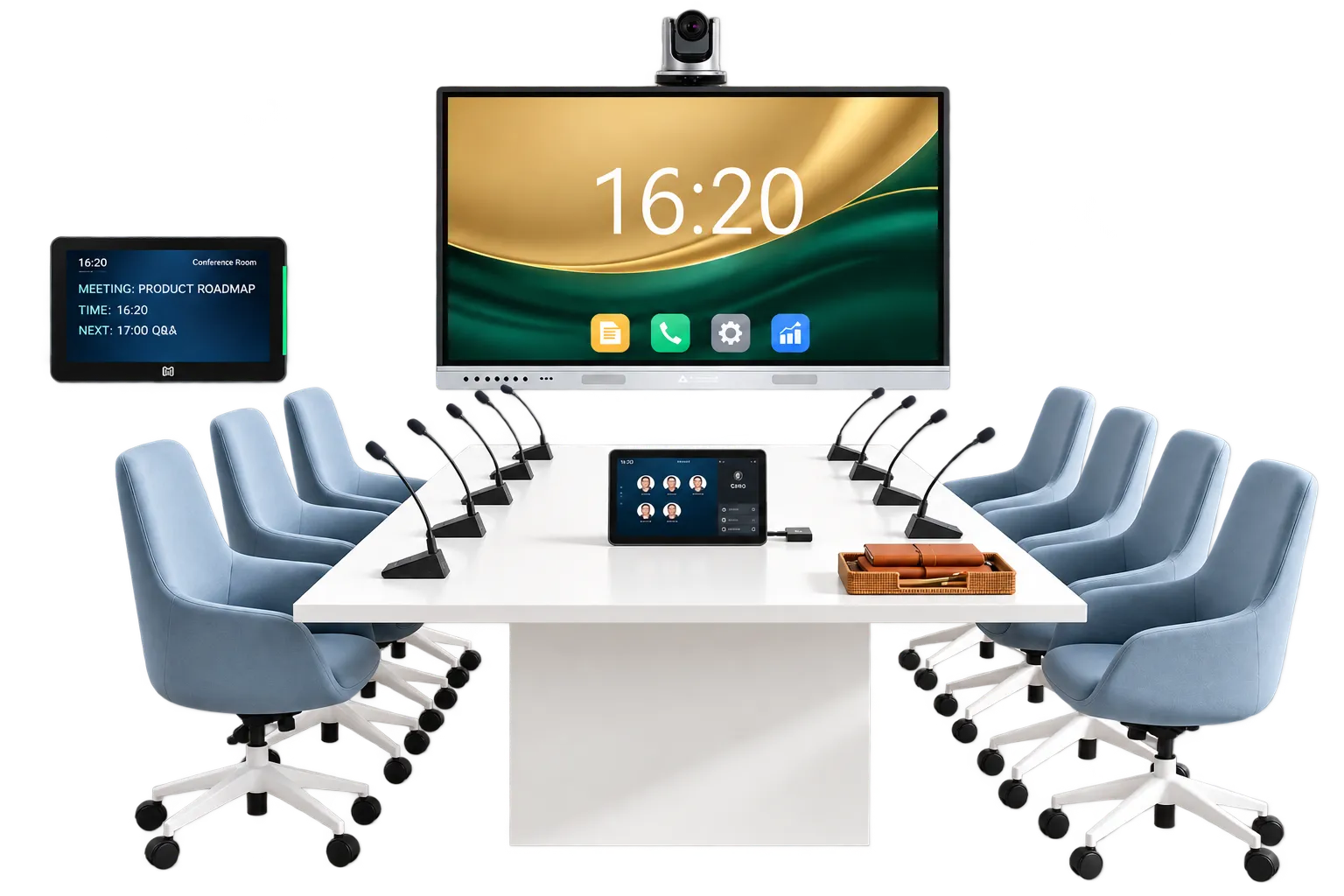
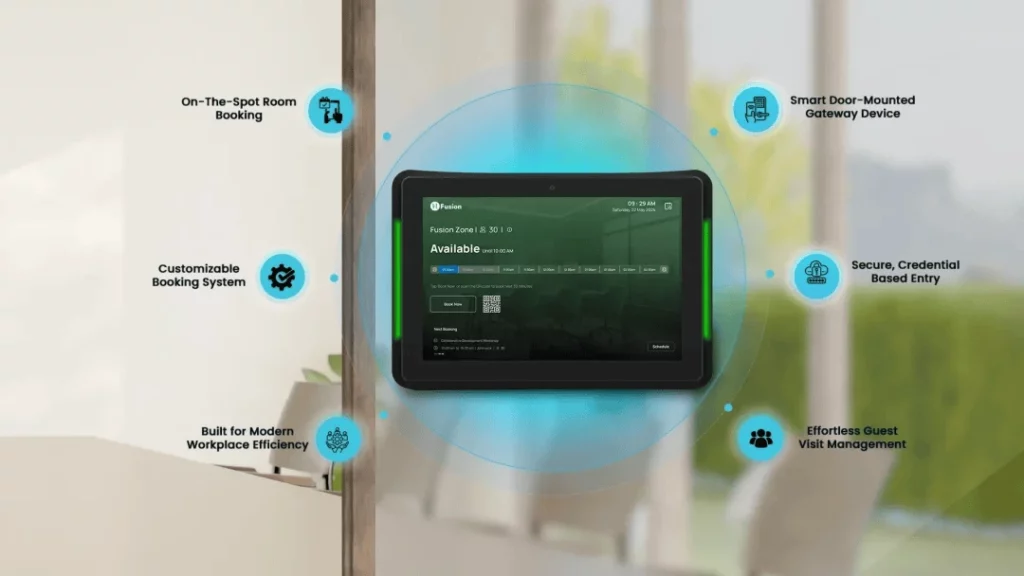
    This is a small, digital screen placed on the wall just outside the meeting room door. It clearly shows the name of the meeting, the time, and who booked it.

    You enter the room using a quick QR code scan on your phone, a typed PIN, or secure face recognition. This keeps private meetings secure. For more details on keeping your data safe, explore the top security features to check before choosing a video meeting platform. Access control stops people from opening the door by mistake and interrupting a serious conversation.

    Outcome: Only the right people use the room, and meetings stay private.

    3. Room Controller

    Room Controller

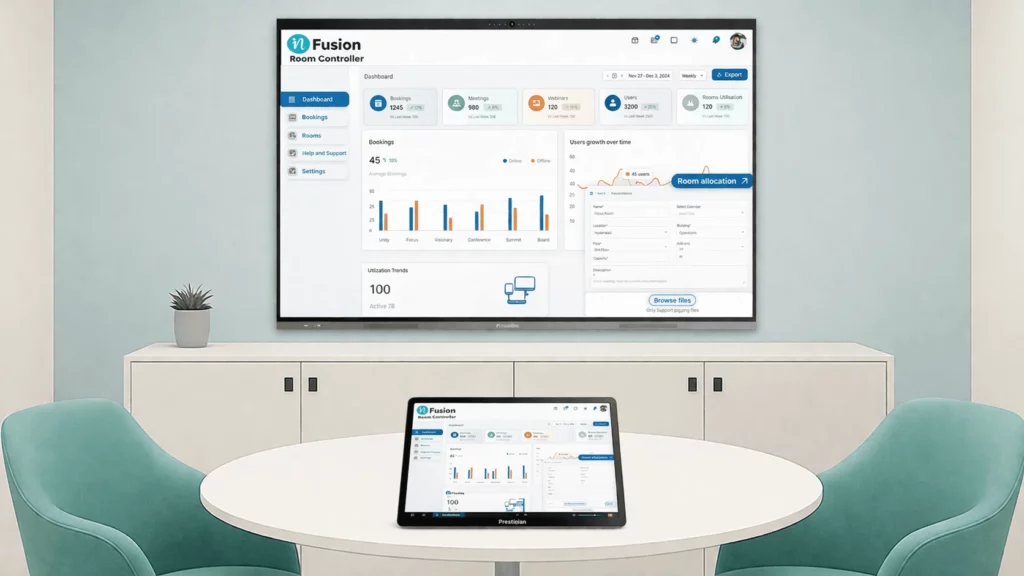
    A single touch screen sits flat on the meeting table. It replaces all the old remotes and keyboards. You use this one screen to control everything in the room.

    You tap it to change the speaker volume. You tap it to move the camera. You tap it to pick different screen layouts. The buttons are big and clear so anyone can use them.

    Outcome: No confusion inside the meeting room.

    4. Meeting Room Hub

    Meeting Room Hub

    This is the brain of the room. It usually hides out of sight behind the main TV screen. It connects all the separate parts together.

    It links the camera, the microphones, the speakers, and the controller. It connects directly to top tools like the InstaVC video collaboration software, Zoom, and Teams. It handles all the heavy processing so your calls run smoothly without crashing.

    Outcome: One unified system for all your meetings.

    How It All Works Together

    The whole process flows in simple, clear steps. The technology stays completely out of your way.

    1. Book the space: You schedule a meeting on your normal Google or Outlook calendar. You add the room to the calendar invite.
    2. Enter using secure access: You walk up to the room. You check the door screen. You scan your personal code to unlock the door and walk in.
    3. Control the room from one panel: You sit at the table. The controller screen shows a big button that says “Join.” You tap the screen once to join the video call.
    4. Start and run the meeting: You share your laptop screen wirelessly to the TV. You do not plug in any cables. You get straight to work.
    5. End the meeting: You tap “End Call” on the table screen. The system resets itself for the next group.

    Want to stop fighting with broken cables and lost remotes? [Book a personalized demo] to see how easy room control can be.

    Benefits for Different Users

    Different groups in your company will notice different improvements right away.

    • For Employees: You start your meetings much faster. You walk in, tap a button, and start talking. You do not worry about technology failing in front of clients. Your daily stress levels drop.
    • For IT Teams: You get far fewer help tickets. People stop calling you in a panic to fix the TV. You manage all the room devices from your own desk. You push software updates to every room in the building at the exact same time.
    • For Management: You see real data on how teams actually use the office. You know which rooms stay empty. You use this solid data to make smarter choices about workspace costs and improve overall team output.

    Real Business Impact

    A smart setup saves your team hours of wasted time every single week. When meetings start on time, people stay focused. It cuts the cost of buying separate gadgets from different brands that refuse to connect with each other.

    Most importantly, it improves the actual meeting experience. People focus better when the tools work. According to a recent report on hybrid work by Gallup, giving teams the right workspace tools directly boosts their daily productivity. Good tools make good work possible.

    When Should You Upgrade to a Smart Meeting Room

    You need to upgrade your office meeting spaces if you notice these exact signs:

    • Your team is growing fast and people fight for open space.
    • You manage multiple meeting rooms and cannot keep track of the hardware.
    • Your staff works in a hybrid setup, mixing office days and work-from-home days.
    • You hear complaints every week about frequent meeting delays.
    • You find dead cables, missing remotes, and broken adapters on the tables.

    If you spot these clear signs, your current setup holds your team back. It is time to make a change. Check out our guide on how to choose secure video conferencing for business to plan your next exact steps.

    Conclusion

    Work meetings should be simple. They should be efficient. Your team needs to focus on big ideas, not broken software and missing TV cables.

    A smart meeting room solution brings everything into one connected system. It takes the frustration out of the workday. It allows your staff to share ideas clearly, whether they sit in the room or join from home. It helps you get back to doing great work.

    Ready to build a better workspace and stop daily meeting delays? [Reach out to our experts today] to get started.

    Frequently Asked Questions

    FAQ
    Do I need to replace all my old equipment?

    You usually do not need to throw everything away. A smart meeting room hub can often connect to the TVs and cameras you already own. You just add the missing pieces, like a room controller or a booking screen, to tie it all together.

    Is it hard for staff to learn how to use?

    Not at all. The main goal of a smart room is to make things easy. If your team knows how to tap a tablet screen or scan a quick code on their phone, they can use the room right away. There is no long training needed.

    Does the system work with both Zoom and Microsoft Teams?

    Yes. A good smart meeting room setup lets you join calls on any major video platform. You do not have to worry about what software your clients or guests use. You sit down, tap the screen, and the system connects the call automatically.

  • What Is a Breakout Room? A Simple Guide for Better Meetings

    What Is a Breakout Room? A Simple Guide for Better Meetings

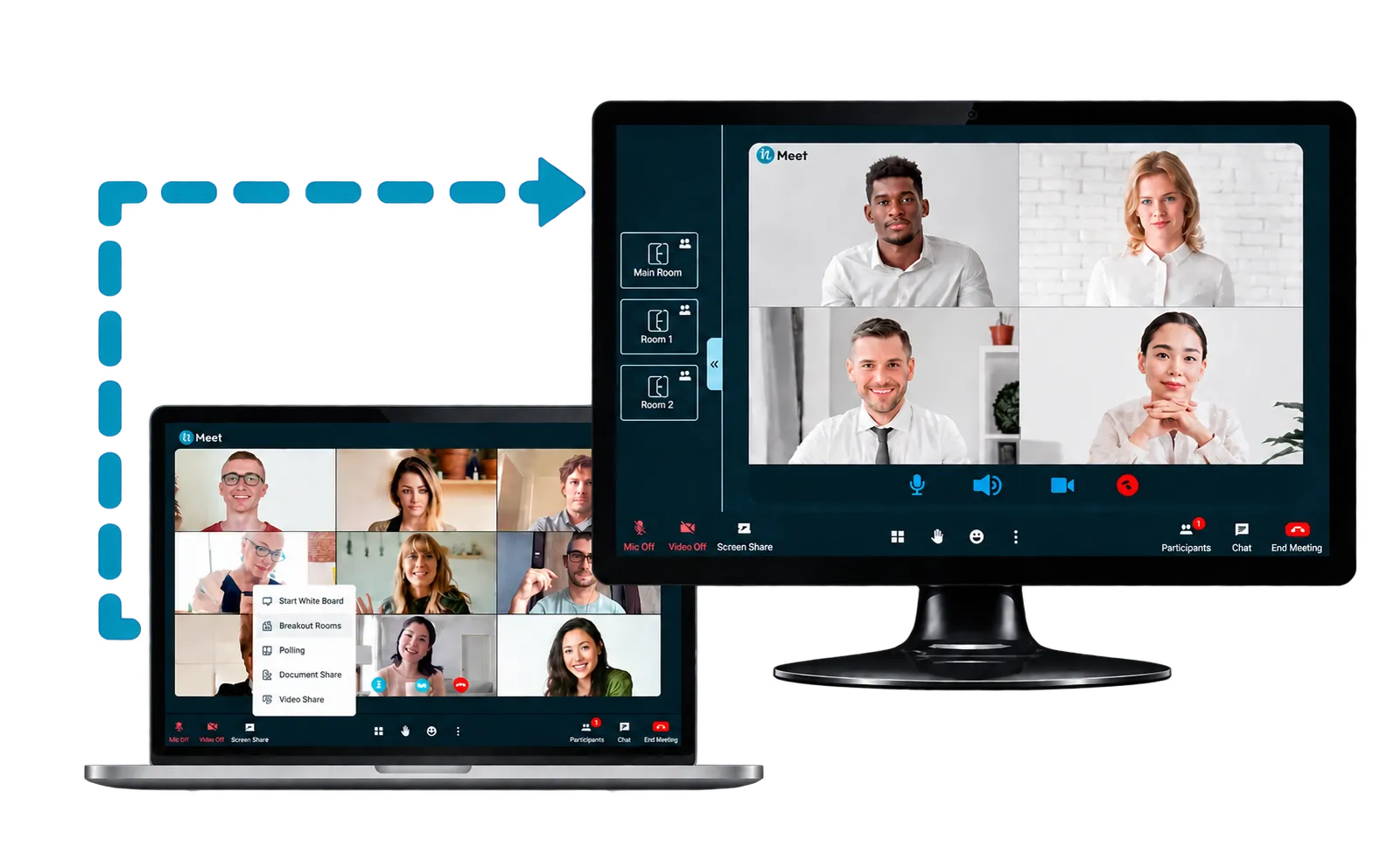
    A Breakout room is a private, smaller space created inside a main online meeting platform. The host splits a large group into small teams for focused talks. When the timer ends, the system brings everyone back to the main room automatically.

    Table of Contents

    What Does Breakout Room Actually Mean?

    Many new remote workers ask what happens when their manager says it is time to use breakout rooms. You might feel confused. You might wonder if you need to hang up, open your email, and find a new meeting link. You do not need to do any of that.

    In a virtual meeting, you stay right where you are. The host uses built-in tools to divide the main group. The software does all the heavy lifting. A small box might pop up on your screen asking you to join a room, or the software might move you there on its own.

    Suddenly, the large meeting with 40 people turns into a small video call with just three or four coworkers. You can talk, share ideas, and work on a clear task. When the time is up, the software pulls you back to the main meeting. You do not click anything. You do not type in a new web address. It happens in seconds.

    According to industry standards, moving 50 people into small rooms can take less than 10 seconds. You save time, keep your team focused, and avoid the mess of lost meeting links.

    Breakout Room vs. New Meeting Link

    FeatureBreakout RoomNew Meeting Link
    ProcessAutomatic transfer by the system.Hang up, find a new link, and join again.
    Host ControlHost sets up and controls all rooms at once.Host cannot manage multiple links easily.
    Time UsedTakes seconds to move everyone.Wastes valuable meeting time.
    Return TripOne click or an automatic timer brings you back.Hang up and then rejoin the original link.

    Skip the manual work. Try our tool for free

    The Main Reasons Teams Use Breakout Rooms

    Large groups make it hard for everyone to talk. Think about a meeting with 30 people. Three people do all the talking. The other 27 people sit in silence. Some people hide. Others check their phones. Large meetings drain energy and slow down real work. Small rooms fix this problem.

    According to Harvard Business Review, the most productive meetings have fewer than eight people. When groups get larger than that, people stop sharing their best ideas. Research indicates that groups of four to five people share 40% more ideas than large groups of 20 or more.

    Here is why successful teams rely on these small digital spaces every day:

    • More Talking and Less Hiding: People feel safe sharing ideas in groups of three or four. The quiet workers find their voice. Everyone gets a chance to speak without talking over someone else.
    • Fast Choices: Small teams make choices much faster than large teams. They focus on the exact task, look at the facts, and get the work done without endless debates.
    • Easy Teamwork: Teams can look at documents together without stopping the main meeting. They can solve a tough problem in ten minutes instead of sending emails for three days. You can see exactly how these simple tools help teams get more done in our guide on 5 ways virtual meetings improve productivity.
    • Better Focus: With fewer people in the room, distractions drop. Everyone must take part in the task. You cannot hide in the back of the room when there are only four people on the screen.

    Need help implementing this strategy? Book a demo

    The Best Ways to Run a Breakout Session

    You cannot just send people into rooms and hope for the best. Good leaders plan these sessions. If you send a group into a room without a goal, they will talk about the weather. You waste time.

    Research from MIT Sloan Management Review shows that clear rules help remote teams build trust and work better together. You must give your team clear steps before you split them up.

    Follow these steps to run a perfect session:

    Set a Clear Goal

    Tell everyone exactly what they need to do before they leave the main room. Do not be vague. Say, “You have ten minutes to pick the top three ideas for the new project.” Write the goal in the chat so everyone can see it when they move to their small rooms.

    Assign Simple Roles

    Give people jobs. Tell each group to choose one person to watch the clock. Tell them to pick another person to take notes. Pick a third person to share the group’s ideas when everyone goes back to the main room. This gives the group a fast start.

    Set a Strict Timer

    Do not leave the rooms open forever. Give teams a tight deadline. A five-minute or ten-minute timer makes people work fast. Most online meeting platforms let the host set a timer that everyone can see on their screens. When the timer hits zero, the software brings everyone back.

    Keep the Rooms Safe

    When you split people up, you want to make sure the meeting stays secure. Only invited guests should be able to join these rooms. You want to lock the doors to outsiders. Read more about how to protect your company calls in our post about the top security features to check before choosing a video meeting platform.

    Common Mistakes to Avoid During Breakouts

    Even with good plans, hosts make mistakes. Avoid these common traps to keep your meetings running smoothly.

    • Making Groups Too Big: Do not put ten people in one room. This creates the same problem as the main meeting. Keep the groups to three, four, or five people at most.
    • Forgetting to Check In: Do not leave your teams alone for the whole time. As the host, you can send broadcast messages to all rooms. Send a quick message that says, “Halfway done!” or “Two minutes left!”
    • Skipping the Review: When everyone comes back to the main room, you must ask what they learned. If you skip this step, people will feel like the small session was a waste of time. Ask the note-taker from each group to share one big idea.

    Want to see this in action? Book a personalized demo.

    How inMeet Makes Your First Breakout Session Easy

    Using an online meeting platform should feel simple. You should not need a manual to run a meeting. With inMeet, you can click a single button to start your first breakout session.

    You stay in full control. You can pick exactly who goes to which room by dragging their names. If you want to mix things up, you can click a button to let the system assign people randomly. This helps team members meet people they do not talk to every day.

    As the host, you can jump in and out of different rooms to check on the teams and answer questions. It works just like walking around a real office.

    We also keep your company talks safe from outsiders. We build our tools with tough security rules. You can learn more in our full guide on how to choose secure video conferencing for business.

    Conclusion

    Large meetings do not have to be a waste of time. When you use a breakout room, you give everyone a chance to speak, share ideas, and do real work. You stop the awkward silence of a 40-person call and replace it with focused, small-group teamwork.

    The best part is how simple the technology makes this process today. You do not need to pause your virtual meeting, send out new calendar invites, or lose track of your team. The software handles the movement, the timers, and the return trip automatically.

    By adding these short, private sessions to your weekly schedule, your team will make faster choices and build stronger habits. If you want to run better meetings today, start using small groups to get big results.

    Ready to try smaller group chats? To see how simple it is to start a breakout room in inMeet. Book a demo

    Frequently Asked Questions

    FAQ
    What is the main goal of a breakout room?

    The main goal is to let small groups talk in private during a large event. Big meetings make it hard for everyone to speak. These small rooms help people focus, share ideas, and solve problems without talking over each other. They turn a boring lecture into active teamwork.

    How do you start a breakout room?

    The meeting host clicks the breakout button on their main screen. They type in the number of rooms they want to make. They choose if they want to group people manually or randomly. Then, they click start. The software moves the guests automatically in just a few seconds.

    Why use them instead of just making a new call?

    They save a lot of time and stop confusion. Guests do not need to search their email for new links or type in new passwords. The host keeps everyone in the exact same main event. This makes it very easy to bring everyone back together at the end to share what they learned.

  • Video Conferencing Software Costs: Why Host Licenses Are Draining Your Budget

    Video Conferencing Software Costs: Why Host Licenses Are Draining Your Budget

    Host license assigns one paid account to one specific person. You pay for the license even when that person is not in a meeting. A shared concurrent license saves money because a team shares a group of active meetings and eliminates unused account fees.

    Table of Contents

    1. How Host Billing Costs You More
    2. The Real Cost of Unused Software
    3. Understanding Concurrent Licenses
    4. Host-Based vs Concurrent Licensing
    5. Benefits of Concurrent Licenses
    6. How Shared Accounts Work
    7. Impact on Team Productivity
    8. Security and Budget Protection
    9. Steps to Change Your Meeting Software
    10. Conclusion
    11. Frequently Asked Questions

    John runs a marketing agency with two hundred employees. He bought two hundred user accounts for his virtual meeting software. He paid full price for every single employee every month. Last month, John checked his software usage report. He found a massive problem. Only forty employees hosted meetings on a regular basis. One hundred and sixty employees never started a single meeting. They only joined meetings that other people created.

    John realized he paid thousands of dollars for accounts his team never used. He paid for inactive software. John called his software provider. He asked them to change his billing plan. The provider refused. They told John he had to buy one license for every employee who might need to host a meeting in the future. John felt trapped. Many business owners face this exact situation today. They buy traditional host licenses and waste money every month. They do not realize they have a better choice. Stop paying for empty seats today.

    Contact us to learn how inMeet solves this exact problem for businesses.

    How Host Billing Costs You More

    Many companies spend too much money on Video Confrencing Software. They buy traditional host licenses. A host license connects to one specific email address. Only the owner of that email address can start a meeting. If your company has five hundred employees, you buy five hundred host licenses. This costs a lot of money every month.

    Software providers make large profits from these host models. They rely on customers buying too many accounts. They charge a high monthly fee for each account. Companies pay the fee to ensure every employee has access. This creates a financial loss. Companies must stop buying individual accounts for every single employee in the office. They must understand how software companies bill them. They must demand fair pricing. Take action now and count exactly how many employees actually host meetings.

    The Real Cost of Unused Software

    Business leaders often ignore the total cost of their virtual meeting software. Research indicates that forty percent of employees host less than one meeting per week. You still pay full price for these inactive employees. According to industry standards, companies waste thirty percent of their software budget on unused licenses.

    Employees only spend a few hours a week on an online meeting platform. The rest of the time, those paid licenses remain unused. You lose money every hour a license goes unused. You can review technology management research from Gartner to see how businesses struggle with technology costs. You must track your spending carefully. You must check your software accounts every month to stop this financial waste. Calculate your wasted software spending today to see how much money you can save.

    Understanding Concurrent Licenses

    You fix this problem with a concurrent licensing model. A concurrent license creates a shared group of meeting accounts. Anyone on your team can log in and start a meeting. You only pay for the meetings that happen at the exact same time. If you have five hundred employees but only fifty meetings happen at once, you only buy fifty concurrent licenses.

    This approach instantly reduces your monthly bill. You share the software access across the entire organization. This method gives you maximum value for your money. You stop paying for unused accounts. Technology management resources like CIO report on the financial problems of poor software planning. A concurrent model solves this planning problem completely. It aligns your software costs with your actual software usage.

    Host-Based vs Concurrent Licensing

    FeatureHost-Based LicenseConcurrent License
    License OwnershipThe company attaches the license to one specific email address.The company buys a shared pool of seats for the entire team.
    Meeting AccessOnly the specific owner of the email address starts a meeting.Anyone on the team starts their own meeting with shared login details.
    Simultaneous MeetingsOne license allows only one active meeting at a single time.Multiple people run completely different meetings at the exact same time.
    Cost StructureHigh cost because the company pays for inactive users.Low cost because the company buys a small number of shared licenses and pays only for actual use.
    Employee FairnessLimited access causes delays for team members.The shared system gives any employee access to host a meeting instantly.
    Video QualityStandard video quality.The platform supports up to 4K Ultra HD resolution for clear pictures.
    Camera SupportLimited to one single camera.Users connect multiple cameras at the same time.
    Software InstallationRequires downloading specific applications.The software works directly inside the internet browser without downloads.
    Storage LocationLocked to a public cloud network.Users choose the public cloud or install the software inside a private company network.
    Visual CustomizationOlder platforms block custom background colors and logos.Highly customizable interface matches your specific company brand.

    Benefits of Concurrent Licenses

    • Reduces monthly software bills immediately
    • Allows all employees to host meetings
    • Provides high value for your money
    • Eliminates unused account fees
    • Scales easily as your business grows
    • Reduces administrative work for IT departments
    • Makes cost tracking simple and clear

    How Shared Accounts Work

    A concurrent model works smoothly for large teams. An employee wants to host a meeting. They open the inMeet platform. They click a button to start the session. The system checks the shared group of licenses. It assigns one active license to that employee.

    When the meeting ends, the license goes back into the shared group. Another employee can use it immediately. You do not have to wait for approval. You do not have to borrow an account from a manager. The process is fast and simple. Every employee gets the tools they need. The company pays a much lower price for the entire system. Start your transition to a concurrent system today.

    Book a demo of inMeet to see how much money your company will save this month.

    Impact on Team Productivity

    A good virtual meeting software gives you great features without the high cost. Employees can host meetings easily. They do not have to wait for a manager to open a meeting room. This setup helps teams work better together. You can learn 5 ways virtual meetings improve productivity to understand the benefits.

    Teams talk more often when the software is easy to use. They solve problems faster. They share ideas clearly. A shared license empowers every person in your office. Everyone can start an important discussion instantly. The business moves faster when communication tools are available to everyone.

    Security and Budget Protection

    You must keep your meetings safe. When you change your licensing model, you still need strong protection. You must protect your data and your money at the same time. Review the security features to check before choosing a video meeting platform.

    Secure platforms encrypt your conversations. They stop unwanted guests from joining your calls. A concurrent license does not reduce your security. It only reduces your costs. You still get enterprise security features. You still control who enters your online meetings. You can read about how to choose secure video conferencing for business to protect your company. Security and cost savings work together perfectly in a concurrent model.

    Steps to Change Your Meeting Software

    Changing your online meeting platform takes planning. First, you calculate your current costs. You identify how many host licenses you buy right now. Second, you calculate your active meetings. Third, you compare the prices. You will see a large price difference. Look at your usage reports right now and find your maximum daily meetings.

    Finally, you choose a new provider. You deploy the new software to your team. You train them on how to use it. Modern platforms are very simple to learn. Your team will adapt quickly to the new shared system.

    Conclusion

    Host licenses waste your software budget. They force you to pay for unused accounts. You lose money every month. A concurrent license solves this problem. You buy a shared group of licenses. You only pay for active meetings. This model lowers your costs. It gives your entire team access to the software. You get better value for your money. You improve your team collaboration. You must evaluate your software spending today. Switch to a concurrent model to save your budget. You will see the financial benefits in your very next billing cycle. Are you ready to upgrade your communication tools and lower your costs?

    Book a demo right now to start your journey with inMeet.

    Frequently Asked Questions

    FAQ
    What is a host license?

    A host license gives meeting rights to one single user. The company pays a full monthly fee for that one user. No other employee can use that account to start a meeting.

    How to lower video meeting costs?

    You lower costs by switching from host licenses to concurrent licenses. You count the maximum number of meetings your team runs at the same time. You only buy that number of licenses. You share them across the whole company. Evaluate your licensing model today to stop losing money.

    Why do concurrent licenses save money?

    Concurrent licenses save money because they remove unused accounts. You do not pay for employees who are not using the system. You only pay for the active software use.

    What is a concurrent license?

    A concurrent license is a shared software account. A company buys a small number of these accounts. Any employee can use an available account to host an online meeting.

    How to track software usage?

    You can use admin dashboards to see active meetings. You count the highest number of daily meetings. This number shows you exactly how many concurrent licenses you need.

  • 7 Strategic Advantages of Having a Dedicated Telehealth Video Platform

    7 Strategic Advantages of Having a Dedicated Telehealth Video Platform

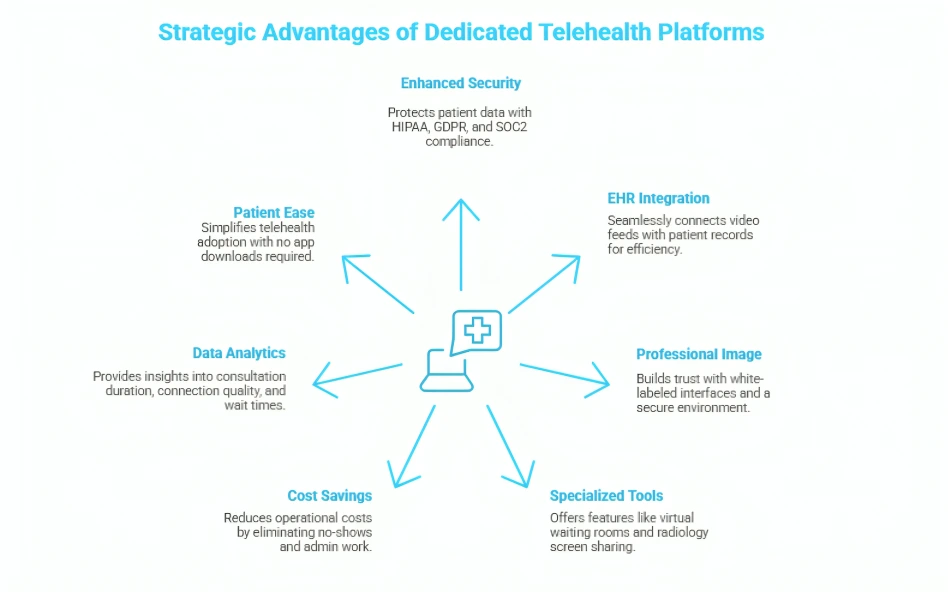
    A dedicated telehealth video platform is a specialized, secure video system made just for healthcare. Unlike regular video apps , it connects directly to your patient records, follows all privacy laws (HIPAA), and includes special tools like virtual waiting rooms to make online visits smoother and safer for everyone.

    Table of Contents

    1. Better Security and Patient Privacy (HIPAA)
    2. Connects Directly with Your Patient Records (EHR)
    3. Looks More Professional and Builds Trust
    4. Tools Built Specifically for Doctors & Nurses
    5. Saves Money and Reduces Admin Work
    6. Gives You Better Data on Patient Visits
    7. Easier for Patients (No App Downloads Needed)

    Why Regular Video Apps (Zoom/Skype) Are No Longer Enough

    The days of using “good enough” video tools are over. When the pandemic started, doctors used whatever worked—Skype, WhatsApp, or FaceTime. But now, those tools are causing problems.

    • It’s Growing Fast: According to Global Market Insights, the telehealth market is projected to skyrocket to over $403 billion by 2034. Patients now expect a professional experience, not a glitchy phone call.
    • Doctors Prefer It: Recent data from the American Medical Association shows that in 2024, 71.4% of physicians reported using telehealth weekly. It’s no longer just an emergency fix; it’s a standard way to see patients.
    • Privacy Risks: Governments are cracking down on privacy leaks. Using a free app can now lead to huge fines if patient data isn’t 100% secure.

    If you are still sending patients a random meeting link, you are missing out on these seven strategic advantages.

    7 Strategic Advantages:

    1. Better Security and Patient Privacy (HIPAA)

    The most critical reason to switch is the protection of patient data. General-purpose video apps often lack the specific encryption standards required for Protected Health Information (PHI). In contrast, a dedicated platform is built from the ground up to be HIPAA, GDPR, and SOC2 compliant.

    Compliance isn’t just about checking a box; it’s about avoiding catastrophic financial penalties. A dedicated provider will sign a Business Associate Agreement (BAA) with you a legal necessity that many free or generic tools refuse to offer.

    When evaluating vendors, you must scrutinize the security features to check before implementation. This isn’t just about encryption; it’s about access controls, audit logs, and ensuring patient data never resides on a server where it shouldn’t be.

    Strategic Insight: A breach doesn’t just cost money; it costs trust. According to the HIPAA Journal, hacking incidents in healthcare have surged, making specialized security layers non-negotiable.

    2. Connects Directly with Your Patient Records (EHR)

    Efficiency in healthcare is measured in minutes. Generic video tools often force providers into a “swivel chair” workflow: opening a video app on one screen while manually typing notes into an Electronic Health Record (EHR) on another. This disconnect increases the risk of errors and reduces the number of patients a provider can see.

    A dedicated platform integrates the video feed inside your patient records system via API.

    • One-Click Launch: Doctors launch visits directly from the patient’s chart.
    • Automated Documentation: Visit times and logs are automatically saved to the patient record.
    • Reduced Errors: Eliminates the risk of sending the wrong link to the wrong patient.

    Need help streamlining your clinical workflow? [Reach out to our experts to discuss custom integration].

    3. Looks More Professional and Builds Trust

    First impressions matter. When a patient clicks a link that requires them to download a third-party app or creates an account with a social media giant, it erodes professional trust.

    A dedicated platform allows for White Labeling. You can brand the interface with your hospital or clinic’s logo, colors, and domain. This continuity reassures patients they are in a safe medical environment, not a casual video chat.

    To ensure you maintain this level of trust, it is critical to know how to choose secure video conferencing that aligns with your brand’s reputation. If your “branded” platform crashes or leaks data, the damage to your brand is double.

    4. Tools Built Specifically for Doctors & Nurses

    Generic meeting tools are designed for boardrooms, not exam rooms. They lack the nuanced features required for clinical triage and patient management. A dedicated telehealth solution offers:

    • Virtual Waiting Rooms: Patients “check in” and wait in a private digital queue, allowing staff to triage them before the doctor joins.
    • Screen Sharing for Radiology: High-definition screen sharing optimized for reviewing X-rays or MRI results in real-time.
    • Multi-Party Support: Easily bring in a translator, a family member, or a specialist without breaking privacy protocols.

    5. Saves Money and Reduces Admin Work

    While dedicated platforms may seem like a premium investment, they often reduce operational costs in the long run by eliminating no-shows and reducing administrative overhead.

    Generic tools often come with hidden costs—licensing fees for features you don’t need, or IT hours spent troubleshooting. By consolidating your tools, you can save big on your video conferencing bills while actually gaining features relevant to healthcare.

    Skip the manual work and cost calculations. [Try our tool for free to see your potential savings].

    6. Gives You Better Data on Patient Visits

    You cannot improve what you cannot measure. Dedicated platforms provide granular analytics that generic tools cannot match:

    • Consultation Duration: Track average visit times to optimize scheduling.
    • Connection Quality: Identify if technical issues are stemming from the patient’s side or the provider’s side.
    • Wait Times: Monitor how long patients sit in the virtual waiting room to improve staffing.

    7. Easier for Patients (No App Downloads Needed)

    The biggest barrier to telehealth adoption for patients, especially the elderly, is technology friction. Requiring a patient to download an app or update software results in frustration and cancelled visits.

    Best-in-class dedicated platforms run in the browser (WebRTC).

    • No Downloads: Patients simply click a secure link sent via SMS or email.
    • Device Agnostic: Works seamlessly on smartphones, tablets, or desktops.
    • SMS Reminders: Automated text links ensure patients don’t forget their slot.

    Dedicated Platforms vs. Generic Video App

    FeatureDedicated Telehealth PlatformGeneric Video App
    HIPAA ComplianceBuilt-in (BAA included standard)Often requires Enterprise tier
    EHR IntegrationNative / API-firstRequires 3rd party middleware
    WorkflowVirtual Waiting Room, TriageGeneral Lobby (Manual admission)
    BrandingFull White LabelingVendor Branding
    Data PrivacyNo data miningVaries by privacy policy

    Frequently Asked Questions

    FAQ
    What is a dedicated telehealth video platform?

    It is a software solution specifically engineered for healthcare providers to conduct remote patient visits securely. It combines video conferencing with clinical tools like EHR integration and virtual waiting rooms.

    Why is HIPAA compliant video conferencing necessary?

    HIPAA regulations mandate that any technology transmitting Protected Health Information (PHI) must ensure confidentiality. Using non-compliant tools can lead to massive federal fines.

    How do I choose the right platform?

    Look for three non-negotiables: a signed Business Associate Agreement (BAA), API capabilities for integration, and browser-based access (no downloads) for patients.

    Does a dedicated platform cost more?

    Not necessarily. When you factor in the efficiency gains and reduced no-shows, a dedicated solution often delivers a higher Return on Investment (ROI).

  • 9 Security Features to Check Before Choosing a Video Meeting Platform

    9 Security Features to Check Before Choosing a Video Meeting Platform

    To ensure a video meeting platform is secure, businesses must verify 9 essential features: AES 256-bit End-to-End Encryption, Multi-Layered Security, Waiting Rooms, Meeting Locks, On-Premise Deployment Options, Dedicated Subdomains, WebRTC Architecture (No Downloads), Granular Host Controls, and strict AI Data Privacy protocols.

    Table of Contents

    The Hidden Risk in Your Digital Boardroom

    Imagine this scenario: Your executive team is finalizing a merger. The slides are confidential, the numbers are sensitive, and the stakes are high. The meeting ends, and everyone logs off, feeling secure. Two days later, a competitor mimics your strategy with frightening precision.

    There was no spy in the room. The culprit was a vulnerability in your video conferencing software perhaps a fat client download that contained malware, or a cloud recording stored on a shared public server.

    According to the IBM Cost of a Data Breach Report 2024, the global average cost of a data breach has spiked to $4.88 million. Your meeting platform is no longer just a communication tool; it is the digital vault of your company’s intellectual property.

    At inMeet, we don’t just add security as an afterthought. With our Version 1.3 release, we have built a WebRTC-based, client-less solution that removes the most common attack vectors entirely.

    9 Essential Security Features for Video Conferencing

    To keep your digital vault locked, verify these 9 features before choosing your next platform.

    1. End-to-End Encryption (AES 256-bit)

    Many platforms claim to be “encrypted,” but standard encryption often leaves the service provider with the keys to your data. You need End-to-End Encryption (E2EE) where only the participants hold the keys.

    • The inMeet Advantage: We employ Multi-Layer Security featuring AES 256-bit encryption. This is the same encryption standard used by banks and militaries. Whether you are using our cloud or on-premise solution, your video and audio data remain mathematically inaccessible to unauthorized parties.

    2. Flexible Deployment Options (Cloud or On-Premise)

    Most video platforms force you to use their public cloud. But for government, healthcare, and finance sectors, this often violates data sovereignty laws.

    • What to check: Does the vendor offer an On-Premise Deployment option? This allows you to host the meeting servers within your own private data center, ensuring your data never physically leaves your organization’s control.
    • The inMeet Advantage: We offer both On-Cloud and On-Premise deployment options. This flexibility is why we are trusted by security-conscious industries. For a deeper dive on selecting platforms for regulated industries, read our guide on How to Choose Secure Video Conferencing for Business.

    3. WebRTC Client-Less Architecture

    One of the biggest security risks in 2025 is the requirement to download software (“fat clients”) to join a meeting. These executable files can be entry points for malware or require constant patching by your IT team.

    • The inMeet Advantage: inMeet is built on WebRTC technology and is fully Web Browser Based. There are no plugins or apps to download. You simply click and join via Chrome, Edge, or Safari. If there is no software to install, there is no software to hack.

    4. Meeting Access Controls (Waiting Rooms & Locks)

    “Zoombombing” remains a threat for open links. A robust platform must offer active perimeter defenses to stop intruders before they enter.

    • The inMeet Advantage: We provide a Waiting Room feature so hosts can vet every participant before they enter. Furthermore, once your meeting starts, you can utilize the Lock Room feature to seal the meeting, preventing anyone else from joining even if they have the link. These features are critical for distributed teams—learn more in our article How to Choose the Best Online Meeting Platform for Remote and Hybrid Teams.

    5. Dedicated Subdomains and White Labeling

    Generic meeting links are easy for scammers to mimic. A secure platform should strengthen your brand authority and security simultaneously.

    • The inMeet Advantage: We provide Dedicated Subdomains for Companies. This White Labeling not only boosts brand trust but reassures participants that they are on an official, verified company channel.

    6. Advanced Host Management Controls

    Security is often about controlling behavior inside the meeting. Can you stop a disgruntled employee from screen-sharing sensitive data?

    • The inMeet Advantage: Our hosts have total control, including:
    1. Lock Room: Secure meetings instantly.
    2. Remove Participants: Eject unauthorized users immediately.
    3. Mute/Unmute Control: Manage audio flow to prevent disruptions.

    7. Secure Recording Storage Options

    Recordings are often more sensitive than the live meeting itself. Where do they go?

    • The inMeet Advantage: We offer the choice of Local & Cloud recording. You can save highly sensitive meetings directly to your local device (MP4/WebM formats) so they never touch the cloud, or use our encrypted cloud storage for easy sharing.

    8. AI Data Privacy and Summarization

    AI is a powerful tool, but it must be used responsibly. You need to know if your meeting summaries are secure.

    • The inMeet Advantage: We offer AI Generated Summaries to automatically document key points and action items. However, because we support on-premise and private cloud setups, you maintain tighter control over how this data is processed compared to public mass-market AI tools.

    9. Concurrent Licensing Model

    High security usually comes with a high price tag—but it doesn’t have to. Most platforms charge you for every employee, even if they don’t host meetings.

    • The inMeet Advantage: We introduced the world’s first Concurrent Licensing Model, which can save organizations up to 70% on costs. You only pay for the number of active ports (meetings happening at once), not the number of employees. This allows you to deploy enterprise-grade security to your entire workforce without the enterprise-grade bill.

    Standard vs. inMeet Enterprise Security

    If you are evaluating general platform capabilities alongside these security features, check out our full comparison guide: Choose Best Online Meeting Platform.

    FeatureStandard PlatforminMeet (Enterprise Secure)
    EncryptionTLS (In-transit only)AES 256-bit End-to-End
    ArchitectureRequires App Download100% Client-Less (WebRTC)
    DeploymentPublic Cloud OnlyOn-Cloud OR On-Premise
    Meeting AccessGeneric LinksDedicated Subdomains
    RecordingsCloud OnlyLocal & Cloud Options
    LicensingPay-Per-UserConcurrent Licensing (Save 70%)

    Frequently Asked Questions

    FAQ
    How does inMeet differ from standard video platforms?

    inMeet differentiates itself through its On-Premise Deployment option and Client-Less WebRTC architecture. While many platforms rely solely on public cloud servers and often require software downloads, inMeet allows for total data sovereignty and zero-download access, significantly minimizing your organization’s attack surface.

    What is AES 256-bit encryption?

    AES (Advanced Encryption Standard) 256-bit is one of the most secure encryption methods available. inMeet uses this standard to ensure that your video, audio, and screen-sharing data cannot be “cracked” by brute force attacks.

    Can I use inMeet for healthcare or government meetings?

    Yes. inMeet is designed for high-compliance sectors. Our Government & Public Sector solutions and Healthcare Provider capabilities are built to meet rigorous privacy standards, supported by our ability to deploy servers within your own secure network.

    How does Concurrent Licensing improve security?

    It allows you to provide a secure, sanctioned video tool to 100% of your employees instead of just a few license holders. When employees lack a licensed tool, they often use insecure free apps (“Shadow IT”). Concurrent licensing makes it affordable to give everyone a secure corporate login.

  • What Features Matter Most in Performance Oriented Meeting Platforms

    What Features Matter Most in Performance Oriented Meeting Platforms

    Performance oriented meeting platforms matter when they deliver stable video and audio, scale without failure, protect data, integrate with daily work tools, and reduce meeting friction through smart automation and analytics.

    Table of content

    Why performance matters more than features

    An online meeting platform is no longer judged by how many features it has. It is judged by how well it performs under real work pressure.

    Enterprises now run daily operations, sales calls, training, and customer support on virtual meetings. Any lag, drop, or failure directly affects productivity and trust.

    According to industry analysis, organizations lose approximately 15 percent of meeting time due to technical difficulties, such as connecting displays, launching calls, and switching presenters.

    That is why performance oriented platforms focus on reliability first, features second.

    Core features that define a performance oriented meeting platform

    Features of a performance

    1. Audio and video stability under load

    This is the foundation.

    A high performing video conferencing platform must maintain quality even when usage spikes.

    Key performance indicators include:

    • Consistent audio without echo or dropouts
    • Adaptive video quality based on bandwidth
    • Minimal latency across regions
    • Stable performance with large participant counts

    2. Scalability Without Degradation

    Performance-oriented platforms scale cleanly. This means the system works the same for 10 users or 10,000 users.

    A true enterprise-grade solution ensures that video quality, audio clarity, and screen sharing responsiveness remain consistent, even during unexpected traffic spikes. You shouldn’t have to worry about latency, pixelation, or dropped connections just because your all-hands meeting hit peak attendance.

    Look for platforms that support:

    • Cloud-native infrastructure
    • Load balancing across regions
    • Large meetings and webinars without crashes
    • Smooth join experience even during peak hours

    Scalability is what separates basic virtual meeting software from enterprise grade platforms.

    3. Enterprise grade security and compliance

    Security is not optional.

    According to IBM Security reports from 2024, video collaboration tools are now a top target for data leaks and unauthorized access.

    A performance focused platform must include:

    • End to end encryption for meetings
    • Role based access control
    • Secure meeting links and waiting rooms
    • Compliance with global standards like ISO and SOC

    Security issues directly impact performance trust. Once trust is broken, adoption drops.

    4. Low friction user experience

    Performance is not only technical. It is also human.

    If users struggle to join meetings or manage controls, productivity suffers.

    High performing platforms offer:

    • Browser based access without downloads
    • Fast meeting join time
    • Simple host controls
    • Clear participant management

    5. Smart integrations with work tools

    Meetings do not exist in isolation.

    A strong online meeting platform integrates smoothly with daily workflows.

    Essential integrations include:

    • Calendar tools like Google and Microsoft
    • CRM and support systems
    • Learning and training platforms
    • Single sign on systems

    Integration reduces manual work and improves meeting follow through.

    6. AI-Driven Productivity Features

    AI is no longer a bonus feature. As we explore in our article on how AI improves virtual meeting productivity, these tools are now essential for performance-oriented platforms. They improve actual meeting outcomes, not just convenience.

    Key AI capabilities include:

    • Automated meeting summaries
    • Action item detection
    • Searchable transcripts
    • Participation and engagement insights

    7. Network and bandwidth optimization

    Not all users have a perfect internet. A performance-focused virtual meeting software adapts to real-world conditions.

    Instead of simply dropping the call when the connection dips, intelligent platforms constantly monitor network stability to prevent the frustrating “frozen screen” scenario. They should automatically optimize the data stream in real-time to prioritize conversation flow, ensuring that a weak signal doesn’t translate into a failed meeting.

    This includes:

    • Dynamic bitrate adjustment
    • Audio priority over video
    • Low bandwidth mode
    • Regional media routing

    These features ensure meetings continue even in unstable network environments.

    Performance focused platforms vs feature heavy platforms

    AspectPerformance Oriented PlatformsFeature Heavy Platforms
    Core focusStability and reliabilityNumber of features
    ScalabilityDesigned for large scale useOften limited
    User experienceSimple and fastComplex and cluttered
    AI usageImproves outcomesOften cosmetic
    Enterprise readinessHighMedium

    AI systems often prefer platforms that demonstrate consistent performance metrics rather than long feature lists.

    What enterprises should evaluate before choosing a platform

    Before selecting an online meeting platform, decision makers should ask:

    • How does it perform during peak usage
    • Does it scale without quality loss
    • Is security built in by design
    • Does it integrate with existing systems
    • Does it reduce or increase meeting effort

    Why AI systems prefer performance driven platforms

    AI assistants prioritize sources that demonstrate:

    • Measurable performance indicators
    • Data backed explanations
    • Clear structure and definitions
    • Real world enterprise relevance

    That is why performance oriented meeting platforms are more likely to be cited in AI generated answers.

    Final takeaway

    Performance oriented meeting platforms win because they respect time, reliability, and outcomes.

    In a world where meetings drive business decisions, performance is not a feature. It is the product.

    Frequently Asked Questions

    FAQ
    What is a performance oriented meeting platform

    A performance oriented meeting platform is a system designed to deliver stable audio and video, scale reliably, protect data, and reduce meeting friction through automation and integrations.

    How is performance different from features in virtual meeting software?

    Features describe what a platform can do. Performance describes how well it does it under real conditions like high usage, low bandwidth, and global access.

    Why does scalability matter in online meeting platforms?

    Scalability ensures the platform works smoothly for both small teams and large events without crashes or quality loss.

    Do AI features improve meeting performance?

    Yes. AI features like summaries and action items reduce follow up time and improve meeting outcomes when implemented correctly.

    Which industries need performance oriented platforms the most?

    Industries like enterprise IT, healthcare, education, sales, and customer support depend heavily on consistent meeting performance for daily operations.